This tutorial uses the Background Removal API. See the docs, live demo, and pricing.
You asked an image generator for a logo, a sticker or a product mockup "on a transparent background", downloaded the PNG, dropped it on your site, and got a white box or a grey checkerboard around it. Most AI image tools cannot output a real alpha channel, and the ones that try often paint the checkerboard into the pixels. This guide answers the question tool by tool, shows how to check whether a file is really transparent, and gives a Python fix that turns any AI-generated image into a true transparent PNG with one API call.
Can AI Image Generators Make a Transparent Background?
Short answer: one major API can, the popular consumer tools cannot. Here is the state of each tool in October 2026, based on their official documentation:
| Tool | Real alpha channel? | What you usually get |
|---|---|---|
| Gemini / nano banana | No documented option | Solid background, or a checkerboard drawn into the image |
| OpenAI GPT Image API | Yes, on supported models | RGBA PNG or WebP when you set background: "transparent" |
| Grok (xAI) | No documented option | Opaque image (URL or base64) |
| Midjourney | No parameter for it | Opaque image on whatever background you prompted |
Gemini and nano banana. Google's Gemini image models have no transparency setting. On the Google AI developer forum, users asking how to get a transparent background with Nano Banana Pro describe the same result: the background is "only graphically represented as tiles", not see-through. Typing "transparent background" in the prompt makes it worse, because the model draws the checkerboard it has seen in thousands of screenshots.
ChatGPT and the OpenAI API. OpenAI's image API is the exception. Its generation guide lists a background option (transparent, opaque or automatic) and says to request PNG or WebP output for transparency. If you call that API directly, use the option. Files saved from other tools, from user uploads or from a model without the option still need the fix below.
Grok. xAI's image generation guide covers output count, aspect ratio, resolution and response format. Nothing about transparency or alpha, so treat every Grok image as opaque.
Midjourney. The full parameter list (aspect ratio, stylize, tile, raw, draft and the rest) has no transparency parameter. The common workflow is to prompt for a plain background and remove it afterwards.
The Fake Checkerboard Problem
A painted checkerboard is the worst outcome, because it looks right in the preview. The grey and white squares are regular pixels with full opacity. Put that PNG on a dark website header and the squares show up around your logo. Here is a quick way to tell a real transparent PNG from a fake one before it reaches production:
from PIL import Image


def has_real_transparency(path: str) -> bool:
    im = Image.open(path)
    if im.mode not in ("RGBA", "LA", "PA") and "transparency" not in im.info:
        return False  # no alpha channel at all
    # at least one pixel must be less than fully opaque
    return im.convert("RGBA").getchannel("A").getextrema()[0] < 255


print(has_real_transparency("generated.png"))  # False for a painted checkerboard
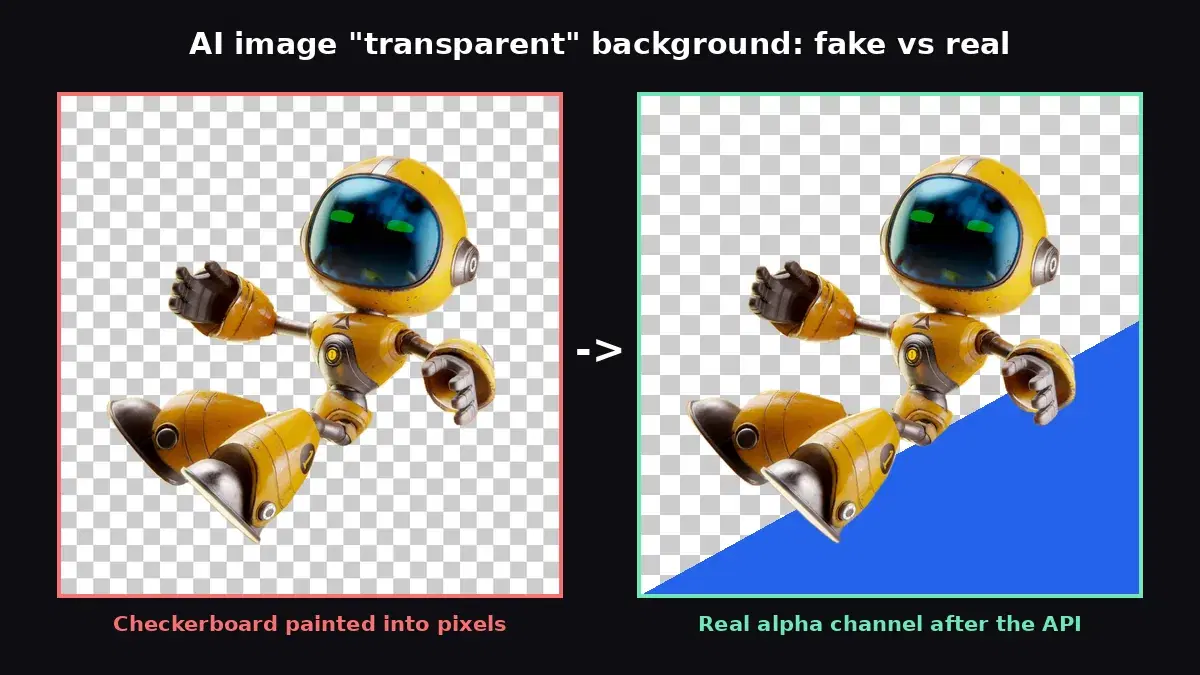
We ran it on a recreated checkerboard image (the left half of the cover above) and on the API output (the right half). The first returns False, its mode is plain RGB. The second returns True. The cover makes the difference visible: the real PNG sits on a background that is half checkerboard, half blue, which is only possible when the pixels around the robot are truly empty.
How to Get a Real Transparent PNG from Any AI Image
The reliable pipeline has two steps: let the generator do what it is good at (the subject), then let a Background Removal API produce the alpha channel. It works the same whether the image came from Gemini, Grok, Midjourney, a stock site or a user upload.
Step 1: Generate on a Plain, Contrasting Background
Ask for the subject on a single flat color that does not appear in the subject: "on a plain solid orange background, no shadow, no floor". Avoid the word "transparent" in the prompt, it is what triggers the painted checkerboard. A flat backdrop gives the segmentation a clean edge to work with.
Step 2: Remove the Background with One API Call
Send the file to /remove-background. The response is JSON with a link to an RGBA PNG, plus its width, height and size:
import requests

API_URL = "https://background-removal-ai.p.rapidapi.com/remove-background"
HEADERS = {
    "x-rapidapi-host": "background-removal-ai.p.rapidapi.com",
    "x-rapidapi-key": "YOUR_API_KEY",
}

with open("robot.png", "rb") as f:
    r = requests.post(API_URL, headers=HEADERS, files={"image": f}, timeout=60)
r.raise_for_status()
data = r.json()
print(data["image_url"], data["width"], data["height"])

png = requests.get(data["image_url"], timeout=60).content
with open("robot-transparent.png", "wb") as f:
    f.write(png)
If the generated image is already hosted (many generator APIs return a URL), skip the download and pass the URL as JSON:
r = requests.post(
    API_URL,
    headers=HEADERS,
    json={"image_url": "https://example.com/generated.png"},
    timeout=60,
)
print(r.json()["image_url"])
The same call from the command line:
curl -X POST "https://background-removal-ai.p.rapidapi.com/remove-background" \
  -H "x-rapidapi-host: background-removal-ai.p.rapidapi.com" \
  -H "x-rapidapi-key: YOUR_API_KEY" \
  -F "image=@robot.png"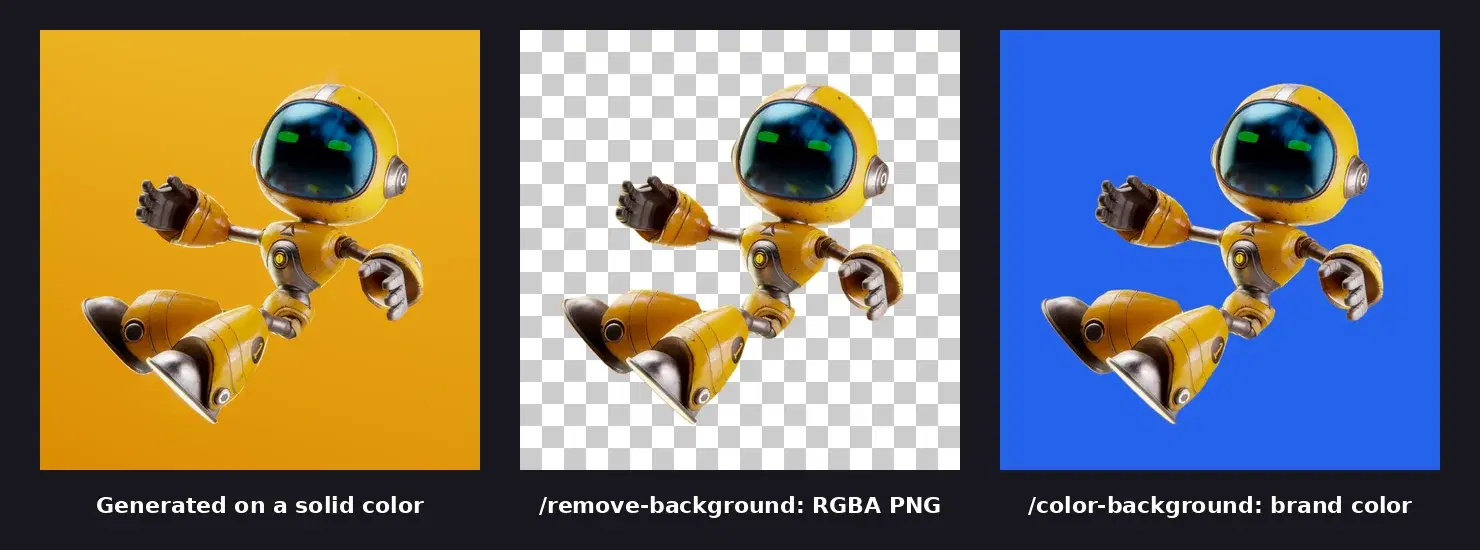
/remove-background (center) and /color-background with a brand blue (right).The test image is a 3D character render from Pexels on a flat orange backdrop, the same kind of output an image generator returns. The cutout keeps the hands, the thin arm joints and the reflective visor. We also sent the recreated checkerboard version: the API removed the painted squares and returned a clean RGBA file, so the fix works even when the generator already ruined the background.
Batch Script for Stickers, Icons and Product Mockups
AI-generated assets usually come in sets: a sticker pack, an icon family, twenty product mockups. This script converts a whole folder in parallel. It accepts PNG, JPEG and WebP input and writes a transparent PNG for each file:
import requests
from pathlib import Path
from concurrent.futures import ThreadPoolExecutor

API_URL = "https://background-removal-ai.p.rapidapi.com/remove-background"
HEADERS = {
    "x-rapidapi-host": "background-removal-ai.p.rapidapi.com",
    "x-rapidapi-key": "YOUR_API_KEY",
}
SRC = Path("generated")  # images exported from your AI generator
OUT = Path("transparent")
OUT.mkdir(exist_ok=True)


def make_transparent(path: Path) -> str:
    with open(path, "rb") as f:
        r = requests.post(API_URL, headers=HEADERS, files={"image": f}, timeout=60)
    r.raise_for_status()
    png = requests.get(r.json()["image_url"], timeout=60).content
    out = OUT / f"{path.stem}.png"
    out.write_bytes(png)
    return out.name


files = sorted(p for p in SRC.iterdir() if p.suffix.lower() in {".png", ".jpg", ".jpeg", ".webp"})
with ThreadPoolExecutor(max_workers=4) as pool:
    for name in pool.map(make_transparent, files):
        print("saved", name)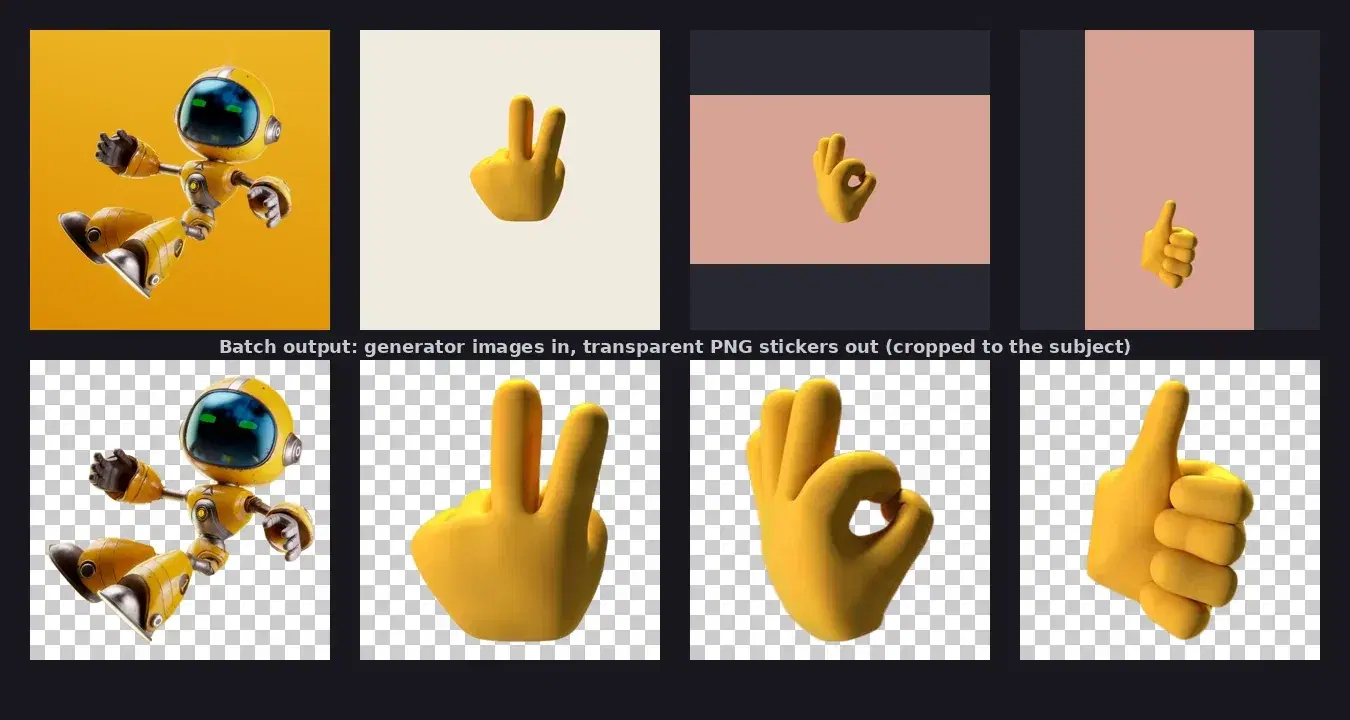
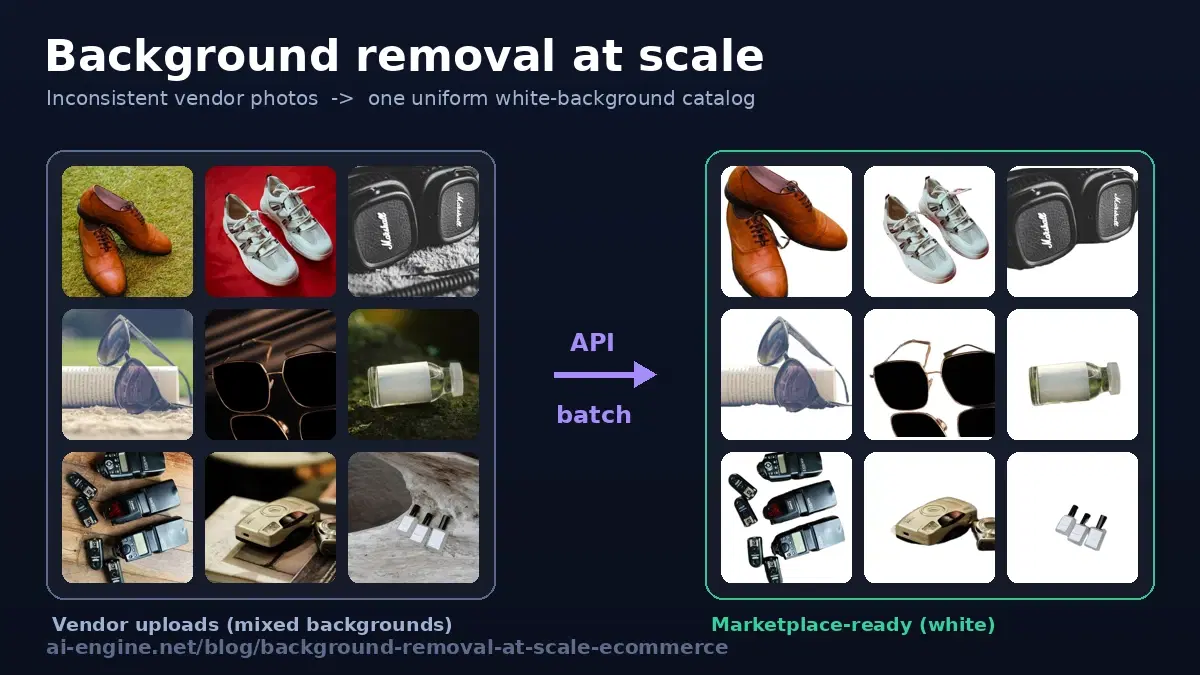
For thousands of images (a full catalog rather than a sticker pack), the background removal at scale guide covers retries, rate limits and storage.
Chroma Key vs a Background Removal API
If you control the prompt, there is a cheaper trick: generate on pure green (#00FF00) and delete green pixels with a color mask, as some developers do with Gemini. It is fast and free, and it breaks in predictable places:
- Green or yellow-green subjects (plants, mascots, neon logos) lose parts of themselves.
- Soft edges (hair, fur, smoke, motion blur) keep a green fringe, because those pixels mix subject and background.
- Reflections and glass pick up the green cast from the backdrop.
- Images you did not generate (user uploads, a painted checkerboard, an old asset library) have no clean key color at all.
A segmentation-based API looks at the subject, not at a color, so the same call handles all of those. A sensible setup: chroma key when you own the prompt and the subject has no green, the API for everything else. If you are weighing a self-hosted model instead, the rembg vs cloud API comparison covers that trade-off.
Tips for Clean Cutouts from AI Images
- Ask for contrast, not transparency. A dark subject on a light flat color, or the reverse, gives the cleanest edges.
- Ban shadows and floors in the prompt. A soft drop shadow is part of the image, and the cutout may keep a faint version of it.
- Generate at full size. Edge quality depends on resolution. Upscale before the cutout, not after.
- Need a brand color, not transparency? Call
/color-backgroundwithbg_coloras "R,G,B,A" (for example "37,99,235,255") and get the subject on your exact color in one step:
with open("robot.png", "rb") as f:
    r = requests.post(
        "https://background-removal-ai.p.rapidapi.com/color-background",
        headers=HEADERS,
        files={"image": f},
        data={"bg_color": "37,99,235,255"},  # R,G,B,A
        timeout=60,
    )
print(r.json()["image_url"])
There is also an /image-background endpoint to place the subject on another photo. The transparent background PNG guide covers compositing, file size and the other background options in detail.
Sources
- OpenAI image generation guide - background option (transparent, opaque, automatic) and PNG/WebP output, checked October 2026
- Google AI developer forum: "How can I make the background transparent?" - Nano Banana Pro output shows tiles instead of transparency
- xAI image generation guide - documented options, no transparency setting
- Midjourney parameter list - full list of parameters, none for transparency
- Transparent PNG stickers with Nano Banana Pro - the chroma key approach (green background, HSV mask)
AI image tools are great at subjects and bad at alpha channels. Generate on a plain background, check the file with the snippet above, and let one call to the Background Removal API produce the real transparent PNG. Grab a key from the API page, point the batch script at your folder of generated images and run it. To compare providers first, see the best background removal APIs comparison.
Frequently Asked Questions
- Can Gemini or nano banana generate a PNG with a transparent background?
- Not reliably. Google does not document a transparent background option for its Gemini image models, and developers on Google's own forum report PNG files with a solid background or a checkerboard drawn into the pixels. Generate the image on a plain, contrasting background, then run it through a background removal API to get a real alpha channel.
- Why does my AI image show a checkerboard instead of being transparent?
- The model learned that "transparent" looks like a grey and white checkerboard in screenshots, so it paints one. Those squares are ordinary opaque pixels. Open the file in Python with Pillow: if the mode is RGB, or the alpha channel never drops below 255, the image has no transparency at all.
- Which AI image generator supports real transparent backgrounds?
- OpenAI's GPT Image API is the main exception: it accepts background set to transparent with PNG or WebP output on supported models. Gemini, Grok (xAI) and Midjourney have no documented transparency option, so their output needs a background removal step.