This tutorial uses the OCR Wizard API. See the docs, live demo, and pricing.
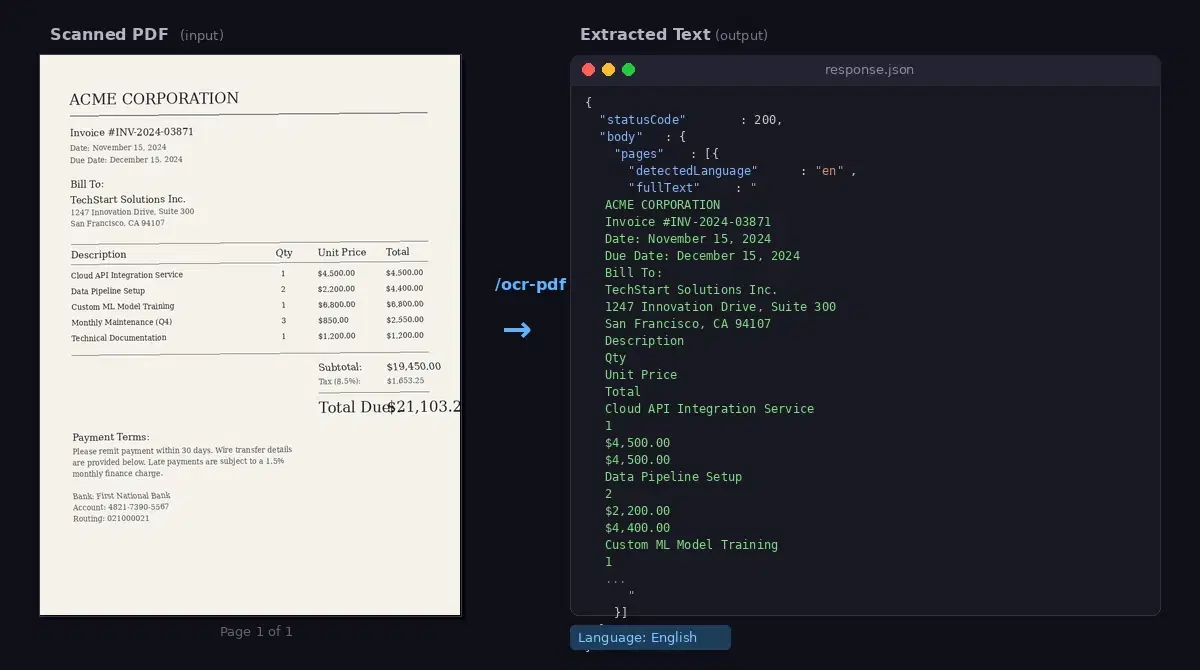
You have a folder of scanned PDFs. Invoices, contracts, old reports, a stack of bank statements your accountant emailed you. None of them are searchable. PyPDF2 returns empty strings because the text is locked inside pixel data, not actual characters.
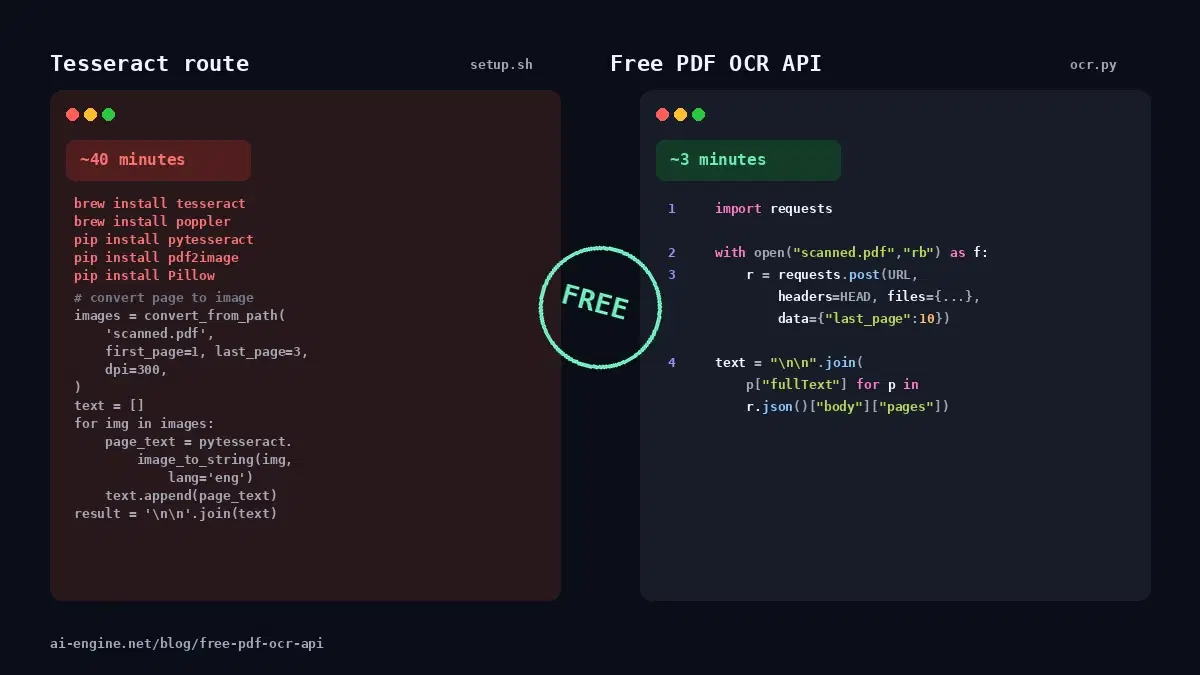
The classic Python answer is Tesseract: install the binary, install pytesseract, install pdf2image and Poppler, convert each PDF page to an image, run OCR per page, stitch the text back together. Forty lines of code, three system dependencies, and accuracy that varies with scan quality.
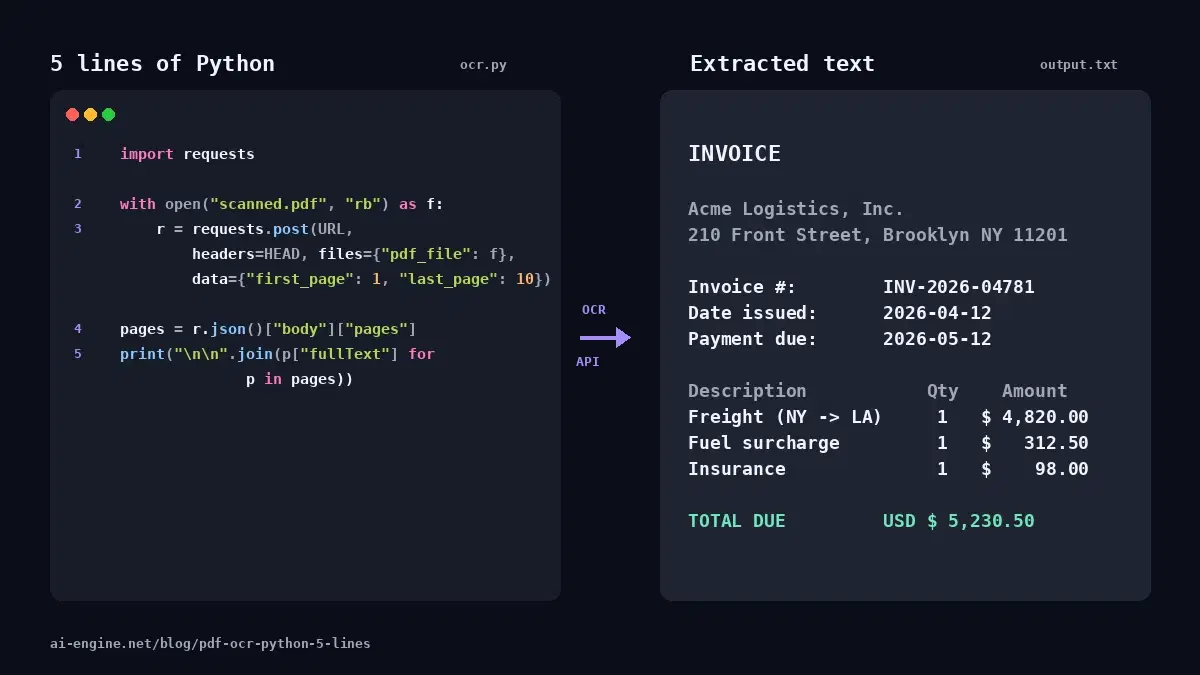
A cloud OCR API skips all of that. Here are the five lines of Python that replace the entire pipeline.
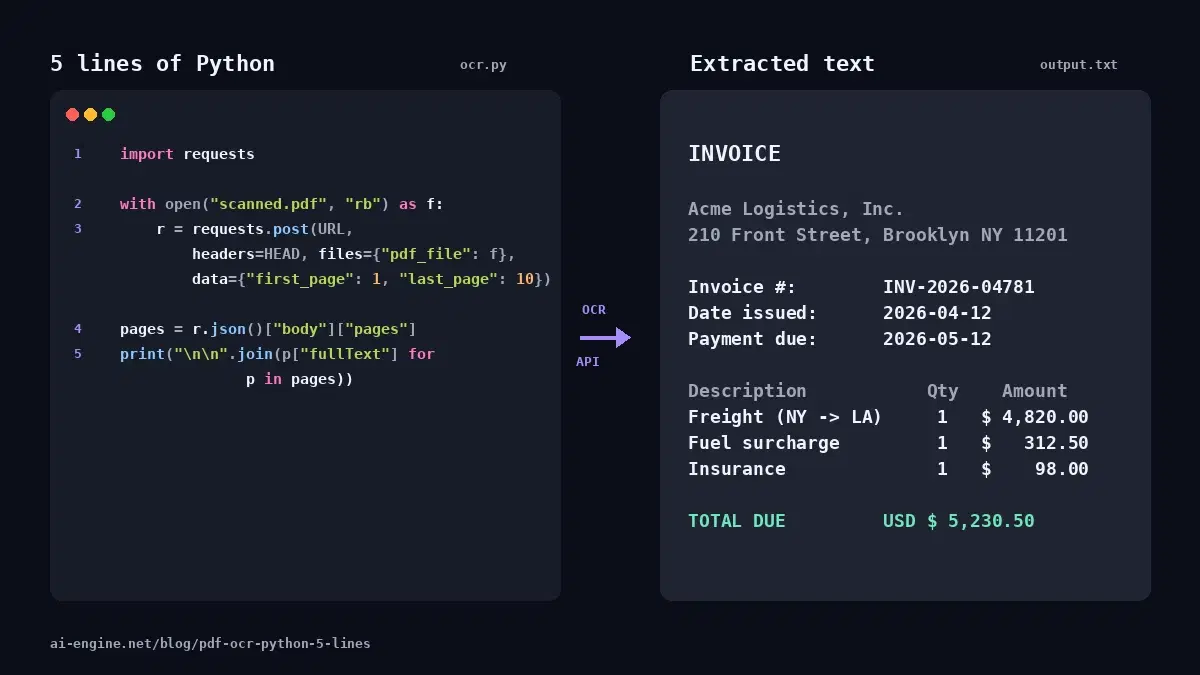
The 5-Line Solution
import requests

with open("scanned.pdf", "rb") as f:
    r = requests.post(
        "https://ocr-wizard.p.rapidapi.com/ocr-pdf",
        headers={"x-rapidapi-key": "YOUR_API_KEY", "x-rapidapi-host": "ocr-wizard.p.rapidapi.com"},
        files={"pdf_file": f},
        data={"first_page": 1, "last_page": 10},
    )

print("\n\n".join(p["fullText"] for p in r.json()["body"]["pages"]))
That is the entire script. No Tesseract install, no pdf2image, no Poppler, no per-page image conversion. Open the PDF, post it, join the pages.
One detail worth knowing up front: the API caps each request at a 10-page range (the difference between first_page and last_page cannot exceed 10). The snippet above covers any PDF from 1 to 10 pages in a single call. For longer documents, the chunked variation further down loops over batches of 10.
What Each Line Does
import requests: the only dependency. Already installed in most Python environments;pip install requestsif not.with open(...) as f: open the PDF in binary mode. Thewithblock guarantees the file handle closes after the request, even if an exception fires.r = requests.post(...): send the file to the OCR Wizard API/ocr-pdfendpoint.filestellsrequeststo encode the body as multipart (what the API expects), anddatacarries the page range. Without an explicit range the API processes only the first page, so thefirst_page/last_pagepair is what unlocks multi-page extraction.r.json()["body"]["pages"]: the response is a list of page objects, each withfullTextanddetectedLanguage(plusimageSizeandannotationsfor the curious). The list order matches the page order in the PDF, so index 0 is the first page in the requested range."\n\n".join(...): stitch the per-page text into one string with double-newlines between pages. Print it, write it to a file, or feed it to whatever comes next.
Common Variations
Process Only a Specific Range
Need only a slice of a long deposition or a single chapter of a scanned book? Set first_page and last_page to any window of up to 10 pages:
r = requests.post(
    "https://ocr-wizard.p.rapidapi.com/ocr-pdf",
    headers={"x-rapidapi-key": "YOUR_API_KEY", "x-rapidapi-host": "ocr-wizard.p.rapidapi.com"},
    files={"pdf_file": open("deposition.pdf", "rb")},
    data={"first_page": 47, "last_page": 56},  # 10-page window
)
Need pages 47 through 82? See the chunked pattern below.
Process PDFs Longer Than 10 Pages
Wrap the call in a loop that slides a 10-page window across the document. Each iteration is one API call, results are concatenated in order:
import requests

HEADERS = {
    "x-rapidapi-key": "YOUR_API_KEY",
    "x-rapidapi-host": "ocr-wizard.p.rapidapi.com",
}
URL = "https://ocr-wizard.p.rapidapi.com/ocr-pdf"
BATCH = 10  # API caps first_page-to-last_page range at 10

def ocr_pdf(pdf_path, total_pages):
    all_pages = []
    for start in range(1, total_pages + 1, BATCH):
        end = min(start + BATCH - 1, total_pages)
        with open(pdf_path, "rb") as f:
            r = requests.post(
                URL,
                headers=HEADERS,
                files={"pdf_file": f},
                data={"first_page": start, "last_page": end},
            )
        all_pages.extend(r.json()["body"]["pages"])
    return all_pages

pages = ocr_pdf("annual-report.pdf", total_pages=120)
text = "\n\n".join(p["fullText"] for p in pages)
print(f"{len(pages)} pages, {len(text)} characters")
Get the page count from PyPDF2 (pip install pypdf2) or any PDF library that can read the page index without rasterizing. Out-of-range batches return zero pages with no error, so passing a slight overestimate is safe.
Loop Over a Folder of PDFs
Batch a whole directory. The script writes one .txt file per PDF, named after the source. For files larger than 10 pages, plug in the chunking function from the previous variation:
from pathlib import Path
import requests

HEADERS = {
    "x-rapidapi-key": "YOUR_API_KEY",
    "x-rapidapi-host": "ocr-wizard.p.rapidapi.com",
}

for pdf in Path("inbox/").glob("*.pdf"):
    with open(pdf, "rb") as f:
        r = requests.post(
            "https://ocr-wizard.p.rapidapi.com/ocr-pdf",
            headers=HEADERS,
            files={"pdf_file": f},
            data={"first_page": 1, "last_page": 10},
        )
    text = "\n\n".join(p["fullText"] for p in r.json()["body"]["pages"])
    pdf.with_suffix(".txt").write_text(text, encoding="utf-8")
    print(f"OK: {pdf.name}")
Track Page Numbers for Citations
When you need to cite which page a piece of text came from (legal work, academic research, audit trails), use the list index from enumerate, which corresponds to the page order in the requested range. The API does not return a pageNumber field, so the index is the source of truth:
pages = r.json()["body"]["pages"]
first_page = 1  # whatever you passed in the request
for offset, p in enumerate(pages):
    page_num = first_page + offset
    print(f"[Page {page_num}] ({p['detectedLanguage']})")
    print(p["fullText"][:200], "...\n")
Pipe to GPT-4 for Clause Extraction
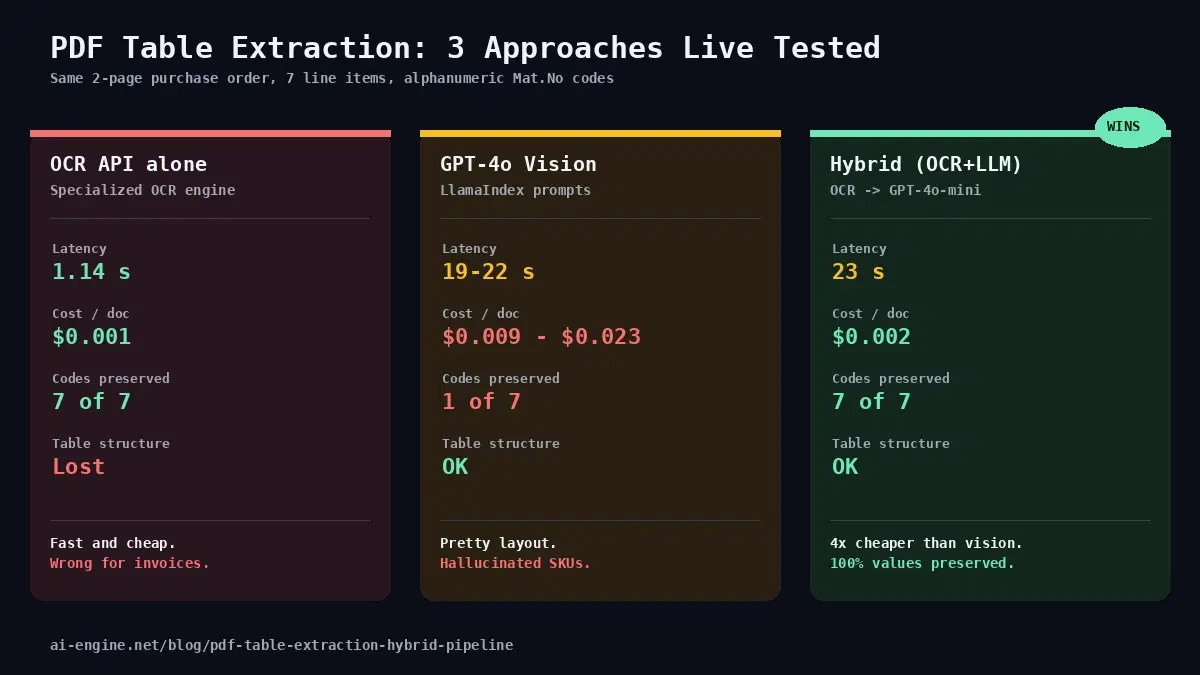
OCR is the first half of a document-analysis pipeline. The second half is parsing the raw text into structured data. Combine the 5-line OCR call with an LLM call to extract specific information from the document:
from openai import OpenAI  # pip install openai

client = OpenAI(api_key="YOUR_OPENAI_KEY")
text = "\n\n".join(p["fullText"] for p in r.json()["body"]["pages"])

response = client.chat.completions.create(
    model="gpt-4o-mini",
    messages=[{
        "role": "user",
        "content": f"Extract the invoice number, date, vendor, and total from:\n{text}",
    }],
)
print(response.choices[0].message.content)
Why Skip Tesseract Locally
Tesseract is a fine engine and still the go-to for offline, privacy-sensitive workloads. For most other use cases, the cloud approach wins on three concrete points:
- No system dependencies. Tesseract needs the binary installed system-wide, plus Poppler for
pdf2imageto work. On macOS that isbrew install tesseract poppler. On Windows it is two separate installers and PATH manipulation. The API needspip install requests. - No per-page image conversion. Tesseract reads images, not PDFs. You rasterize each page to PNG at 300 DPI, then OCR the PNG. The API accepts the PDF directly.
- Better accuracy on noisy scans. Tesseract's LSTM models handle clean print, but degrade quickly on faxes, skewed scans, or pages with mixed fonts. The cloud API runs newer models that hold up across messy inputs.
For a side-by-side, our OCR API vs Tesseract comparison runs both on the same set of documents with measured accuracy and latency numbers.
Going Further
The 5-line script is the quickest path from PDF to text. When you need cURL examples for non-Python stacks, JavaScript code for browser-side processing, response schema details, language detection per page, or production patterns like batching with concurrency, the full PDF OCR developer guide covers it all.
For specific use cases, two adjacent articles dig deeper:
- ID Card to JSON: pipe OCR output into GPT-4 to extract structured fields from scanned IDs.
- OCR for Screenshots: the same API, but for PNG and JPEG inputs instead of PDFs.
Next Step
Grab an API key from the OCR Wizard API page, paste the five lines into a Python file, swap the placeholder key, and run it against your own scanned PDF. A free tier is available, so you can OCR an entire folder of paperwork before deciding if you want to keep going.
Frequently Asked Questions
- Can the 5-line approach handle a 500-page PDF?
- The single 5-line call processes up to 10 pages per request (the API caps the first_page-to-last_page range at 10). For PDFs over 10 pages, wrap the same call in a loop that slides a 10-page window from page 1 to the end of the document. The chunked variation at the end of this article shows exactly that pattern, and you can stream results into a database or queue as each batch completes to keep memory flat.
- Does it work on non-English PDFs?
- Yes. The API detects the page language automatically and returns the detected language code per page in the response. Latin-script languages (English, French, Spanish, German, Portuguese, Italian) work without any configuration. For other scripts, accuracy holds up well on cleanly scanned documents at 300 DPI or higher.
- What about handwritten or low-quality PDFs?
- Printed text in scanned PDFs is handled with near-perfect accuracy at 300 DPI or higher. Handwriting is recognized when the writing is clear, evenly spaced, and well-scanned, but cursive or hastily written notes produce mixed results. For low-quality scans (faxed documents, third-generation photocopies), expect a 10-15 percentage-point accuracy drop and flag low-confidence pages for manual review.