This tutorial uses the OCR Wizard API. See the docs, live demo, and pricing.
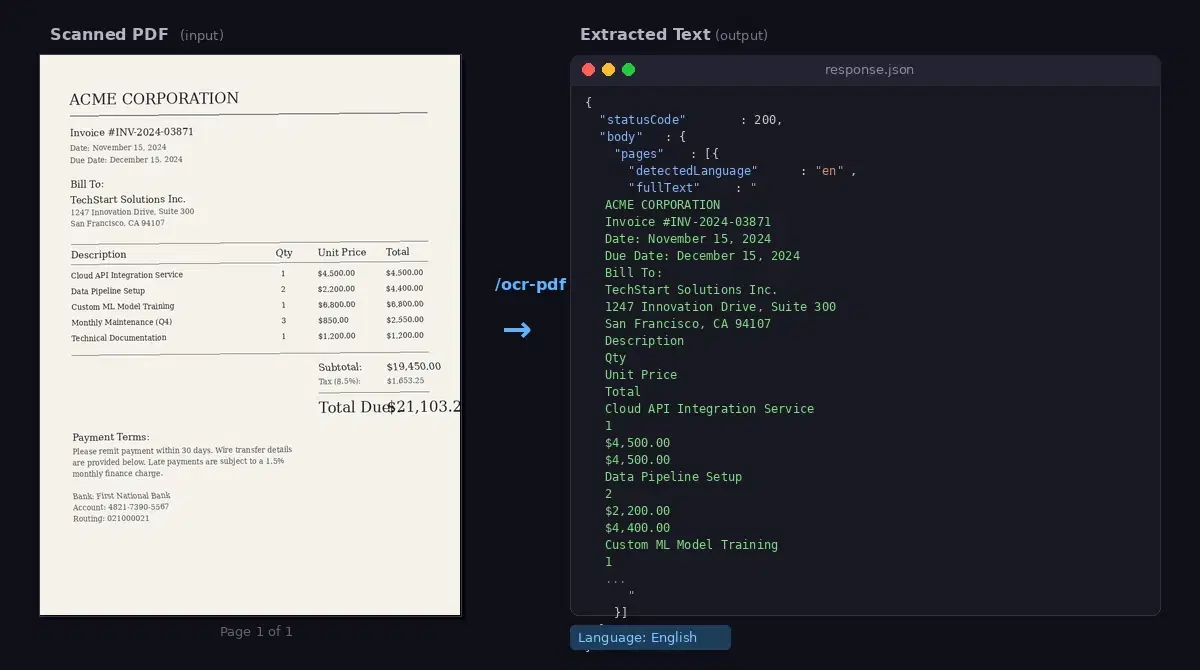
Scanned PDFs are everywhere — contracts, invoices, academic papers, government forms — yet the text inside them is locked in pixel data. You cannot search it, copy it, or pipe it into a database. PDF OCR solves this by running Optical Character Recognition directly on PDF pages, giving you structured, selectable text without converting to images first. In this tutorial you will learn how to extract text from scanned PDFs using a single API endpoint, with working code in cURL, Python, and JavaScript.
Why PDF OCR Is Different from Image OCR
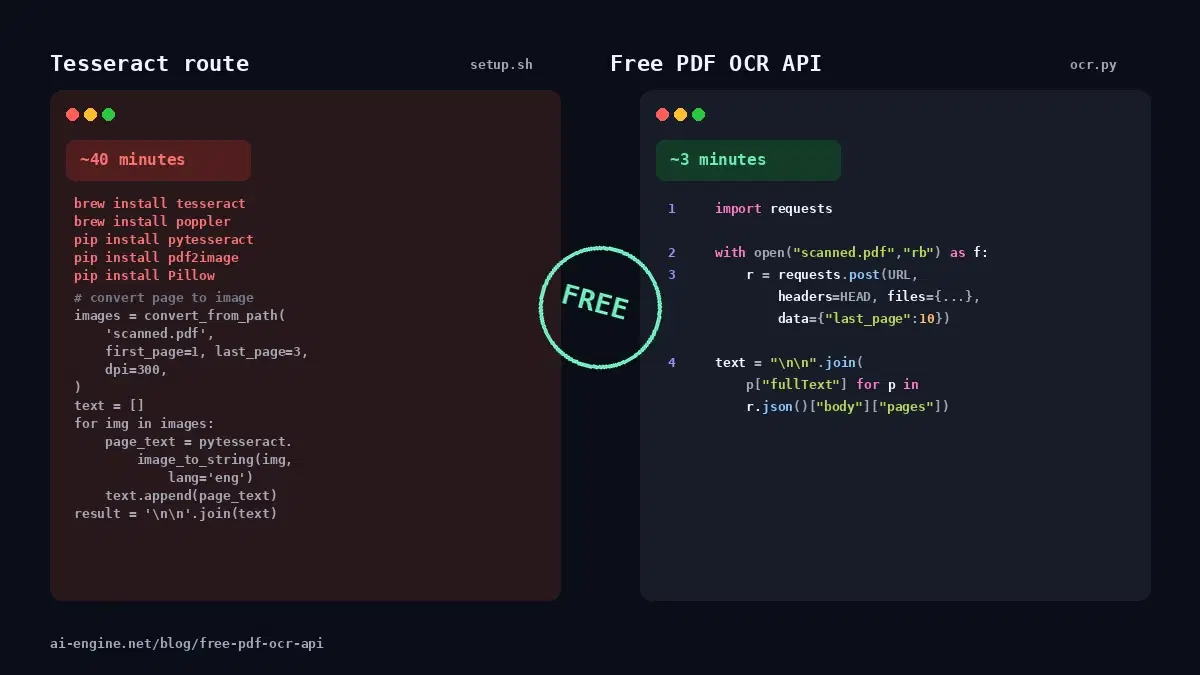
You might be tempted to export each PDF page as a JPEG and send it to a regular image OCR endpoint. That works, but it adds unnecessary steps and loses information:
- Multiple pages in a single request — A dedicated PDF OCR endpoint accepts the entire file and returns text for every page at once. No need to split, convert, and re-assemble.
- Page-range control — Process only the pages you need (e.g. pages 3–7 of a 200-page document) to save time and API credits.
- Preserved page structure — The response is organized by page number, so you always know which text belongs to which page.
- No image conversion overhead — Skip the PDF-to-image pipeline entirely. Upload the PDF and get text back.
The /ocr-pdf Endpoint
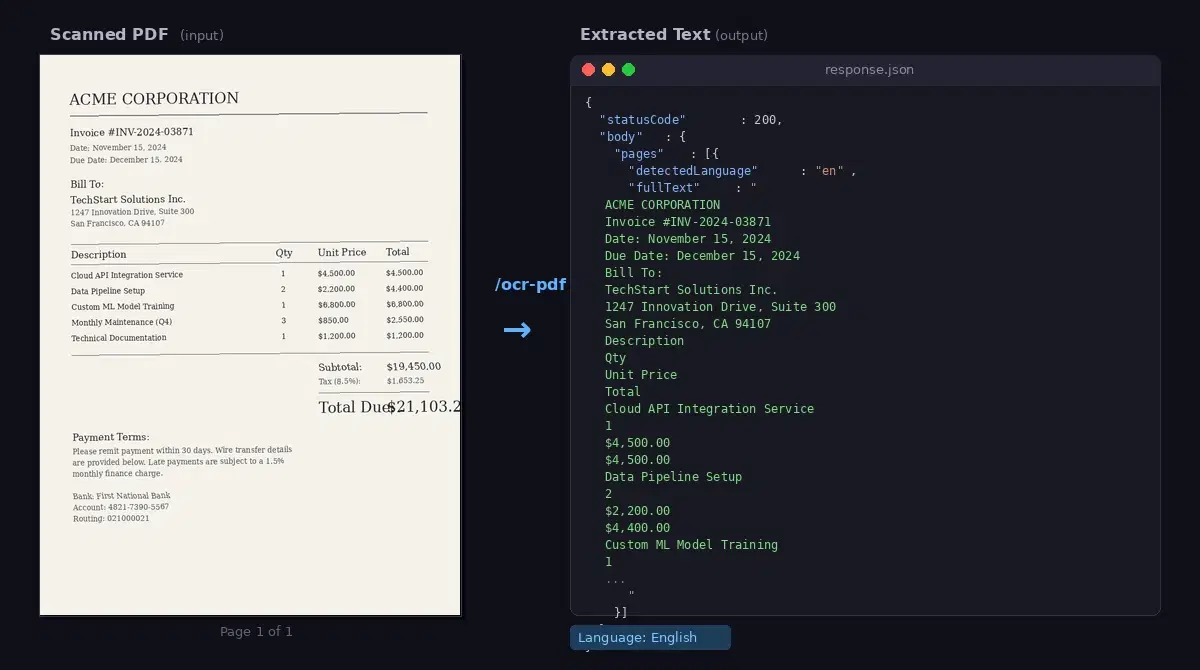
The OCR Wizard API exposes a dedicated /ocr-pdf endpoint for scanned PDF files. Here is what it accepts and returns:
Request Parameters
pdf_file(required) — The PDF file to process, sent as multipart form data.first_page(optional) — First page to process (1-indexed). Defaults to 1.last_page(optional) — Last page to process. Without an explicit value, the API processes only the first page, so always passlast_pagewhen you want more than one page of output.
10-page range limit per request. The difference between first_page and last_page cannot exceed 10. For documents longer than 10 pages, slide a 10-page window across the file and concatenate the per-batch results (see the multi-page section below).
Response Schema
The response JSON contains a body.pages array. Each element represents one page:
{
  "body": {
    "pages": [
      {
        "fullText": "Extracted text from page 1...",
        "detectedLanguage": "en",
        "imageSize": { "width": 1240, "height": 1754 },
        "annotations": [...]
      },
      {
        "fullText": "Extracted text from page 2...",
        "detectedLanguage": "en",
        "imageSize": { "width": 1240, "height": 1754 },
        "annotations": [...]
      }
    ]
  }
}
Page index in the response array maps 1-to-1 to position in the requested range, so the first element corresponds to first_page, the second to first_page + 1, and so on. The API does not return a pageNumber field, so derive it from the index plus your first_page offset when you need to cite specific pages.
Quick Start: Extract Text from a PDF
cURL
Upload a PDF and extract text from pages 1 through 3:
curl -X POST "https://ocr-wizard.p.rapidapi.com/ocr-pdf" \
  -H "x-rapidapi-key: YOUR_API_KEY" \
  -H "x-rapidapi-host: ocr-wizard.p.rapidapi.com" \
  -F "pdf_file=@document.pdf" \
  -F "first_page=1" \
  -F "last_page=3"
Python
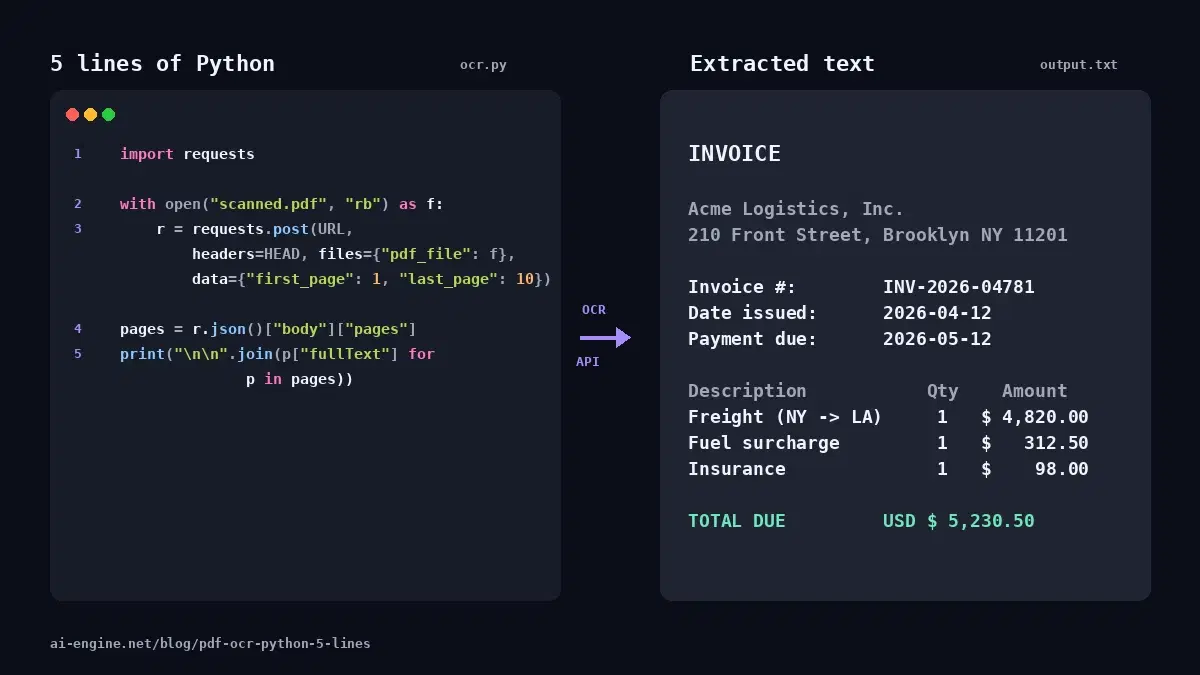
A minimal Python script that uploads a scanned PDF and prints the text from each page:
import requests

HEADERS = {
    "x-rapidapi-host": "ocr-wizard.p.rapidapi.com",
    "x-rapidapi-key": "YOUR_API_KEY",
}

with open("scanned.pdf", "rb") as f:
    resp = requests.post(
        "https://ocr-wizard.p.rapidapi.com/ocr-pdf",
        headers=HEADERS,
        files={"pdf_file": f},
        data={"first_page": 1, "last_page": 5},
    )

for i, page in enumerate(resp.json()["body"]["pages"]):
    print(f"--- Page {i + 1} ({page['detectedLanguage']}) ---")
    print(page["fullText"])
JavaScript (fetch)
Upload a PDF from a browser file input or a Node.js buffer:
const formData = new FormData();
formData.append("pdf_file", fileInput.files[0]);
formData.append("first_page", "1");
formData.append("last_page", "5");

const response = await fetch(
  "https://ocr-wizard.p.rapidapi.com/ocr-pdf",
  {
    method: "POST",
    headers: {
      "x-rapidapi-host": "ocr-wizard.p.rapidapi.com",
      "x-rapidapi-key": "YOUR_API_KEY",
    },
    body: formData,
  }
);

const data = await response.json();
const firstPage = 1;  // whatever you sent
data.body.pages.forEach((page, i) => {
  const pageNum = firstPage + i;
  console.log(`--- Page ${pageNum} (${page.detectedLanguage}) ---`);
  console.log(page.fullText);
});
Process a Multi-Page PDF
For documents longer than 10 pages, wrap the call in a loop that slides a 10-page window across the file. Each iteration is one API call; results are concatenated in page order. Here is a complete Python script that does exactly that:
import json
import requests

HEADERS = {
    "x-rapidapi-host": "ocr-wizard.p.rapidapi.com",
    "x-rapidapi-key": "YOUR_API_KEY",
}
API_URL = "https://ocr-wizard.p.rapidapi.com/ocr-pdf"
BATCH = 10  # API caps first_page-to-last_page range at 10

def extract_pdf_text(pdf_path, total_pages):
    """Extract text from a scanned PDF, chunking calls to respect the 10-page limit."""
    all_pages = []
    for start in range(1, total_pages + 1, BATCH):
        end = min(start + BATCH - 1, total_pages)
        with open(pdf_path, "rb") as f:
            resp = requests.post(
                API_URL,
                headers=HEADERS,
                files={"pdf_file": f},
                data={"first_page": start, "last_page": end},
            )
            resp.raise_for_status()
        all_pages.extend(resp.json()["body"]["pages"])
    return all_pages


# Process the full document (use PyPDF2 or any PDF lib to get the page count)
pages = extract_pdf_text("annual-report.pdf", total_pages=120)

# Print a summary (page index in our local list + 1 = source page number)
for i, page in enumerate(pages, start=1):
    preview = page["fullText"][:80].replace("\n", " ")
    print(f"Page {i} [{page['detectedLanguage']}]: {preview}...")

# Save full output to a JSON file
with open("extracted_text.json", "w") as out:
    json.dump(pages, out, indent=2, ensure_ascii=False)

print(f"\nDone, {len(pages)} pages saved to extracted_text.json")
Combine PDF OCR with Image OCR
In many real-world workflows your input is a mix of scanned PDFs and standalone images (JPEG photos of receipts, PNG screenshots, etc.). You can use both endpoints from the same API to handle everything:
import os
import requests

HEADERS = {
    "x-rapidapi-host": "ocr-wizard.p.rapidapi.com",
    "x-rapidapi-key": "YOUR_API_KEY",
}

def ocr_file(path):
    """Route to the right endpoint based on file extension."""
    ext = os.path.splitext(path)[1].lower()

    if ext == ".pdf":
        with open(path, "rb") as f:
            resp = requests.post(
                "https://ocr-wizard.p.rapidapi.com/ocr-pdf",
                headers=HEADERS,
                files={"pdf_file": f},
            )
        pages = resp.json()["body"]["pages"]
        return "\n\n".join(p["fullText"] for p in pages)
    else:
        with open(path, "rb") as f:
            resp = requests.post(
                "https://ocr-wizard.p.rapidapi.com/ocr",
                headers=HEADERS,
                files={"image": f},
            )
        return resp.json()["body"]["fullText"]


# Process a mixed batch
for filename in ["invoice.pdf", "receipt.jpg", "contract.pdf", "note.png"]:
    text = ocr_file(filename)
    print(f"=== {filename} ===")
    print(text[:200], "\n")
Real-World Use Cases
PDF OCR unlocks automation for any workflow that still depends on paper or scanned documents:
- Invoice and receipt processing — Extract vendor names, dates, line items, and totals from scanned invoices. Feed the data into your accounting software or ERP system automatically.
- Contract digitization — Convert signed contracts and legal agreements into searchable text. Enable full-text search across thousands of documents without reading each one manually.
- Archive scanning — Libraries, government agencies, and hospitals sit on decades of paper records. PDF OCR turns those scans into a searchable, indexed digital archive.
- Academic paper extraction — Researchers often deal with older papers that are only available as scanned PDFs. Extract the text to feed into citation tools, summarization pipelines, or literature review databases.
- Compliance and audit — Financial and regulatory documents frequently arrive as scanned PDFs. Automate data extraction to speed up audits and reduce manual entry errors.
Tips for Best Results
- Use page ranges for large PDFs. If you only need data from specific pages, set
first_pageandlast_pageto avoid processing hundreds of irrelevant pages. This saves time and API credits. - Ensure good scan quality. OCR accuracy depends on the quality of the input. 300 DPI scans produce significantly better results than 72 DPI thumbnails. If you control the scanning pipeline, aim for 300 DPI or higher.
- Check the detected language. Each page in the response includes a
detectedLanguagefield. Use it to route multilingual documents to the right downstream processing (translation, NLP, etc.). - Handle errors gracefully. If a page is blank or too degraded to read, the API will still return a page entry but with empty or minimal text. Check for empty
fullTextvalues and flag those pages for manual review. - Batch with concurrency. If you have many PDFs to process, send requests in parallel (5–10 at a time) instead of sequentially. This dramatically reduces total processing time while staying within rate limits.
Pricing
The OCR Wizard API is available on RapidAPI with several tiers:
- Free — 100 requests/month. Great for testing and prototyping.
- Pro — Higher limits for production workloads.
- Ultra / Mega — Enterprise-grade volume with priority support.
Each /ocr-pdf request counts as one API call regardless of the number of pages processed. Check the API pricing page for current rates.
Next Steps
PDF OCR turns static scanned documents into structured, searchable data with a single API call. Whether you are automating invoice processing, digitizing archives, or building a document search engine, the /ocr-pdf endpoint handles the heavy lifting.
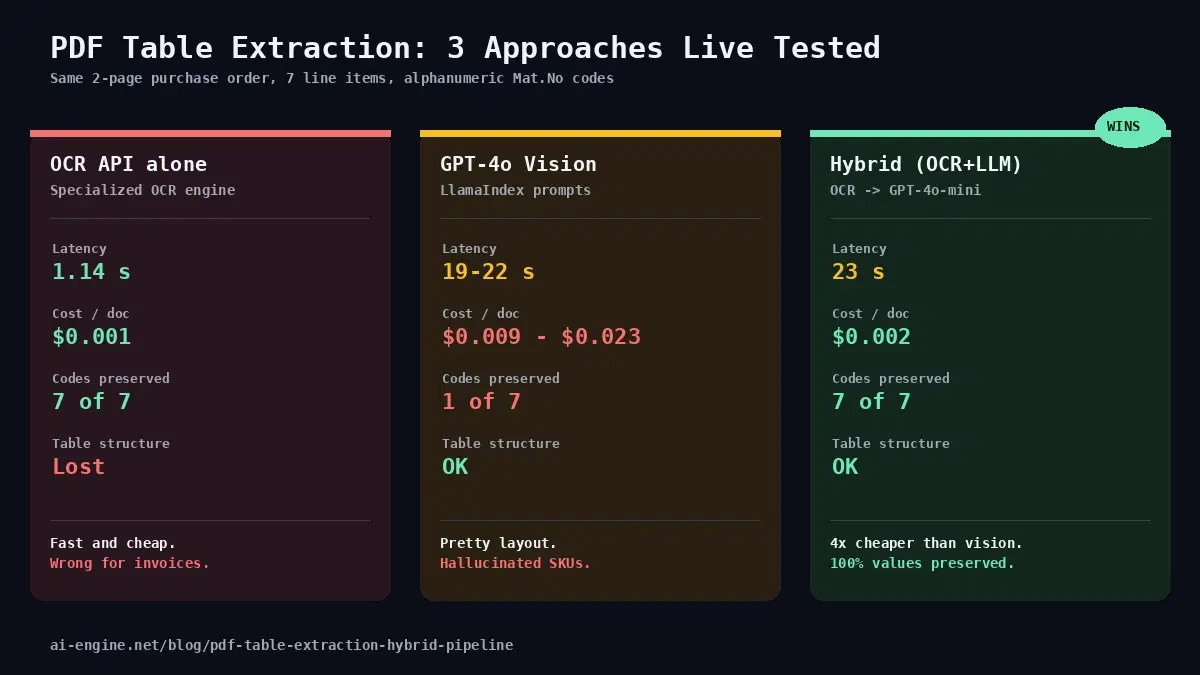
Want the shortest possible version? The PDF OCR in Python in 5 lines tutorial strips it down to a copy-paste script. Ready to go further? Check out the image OCR guide for extracting text from photos and screenshots, or read the OCR API comparison to see how managed APIs stack up against open-source engines. Visit the OCR Wizard API page to get your API key and start extracting text from your PDFs today.
Frequently Asked Questions
- What is PDF OCR?
- PDF OCR (Optical Character Recognition) is the process of extracting machine-readable text from scanned PDF documents. Unlike native PDFs where text is already digital, scanned PDFs contain only images of pages. OCR analyzes these images and converts the visible characters into searchable, copyable text.
- Can OCR extract text from handwritten PDFs?
- Modern AI-based OCR can handle printed text with very high accuracy and basic handwriting in many cases. However, accuracy on handwritten text varies depending on legibility. For best results with scanned documents, ensure the scan resolution is at least 300 DPI and the text is clearly visible.
- How do I OCR a multi-page PDF with an API?
- Send the PDF file with first_page and last_page parameters set to the range you want (the API caps each call at a 10-page range). For documents longer than 10 pages, loop the request with a sliding 10-page window from page 1 to the end of the document and concatenate the results in order. The complete chunking script in the article handles this pattern.