This tutorial uses the OCR Wizard API. See the docs, live demo, and pricing.
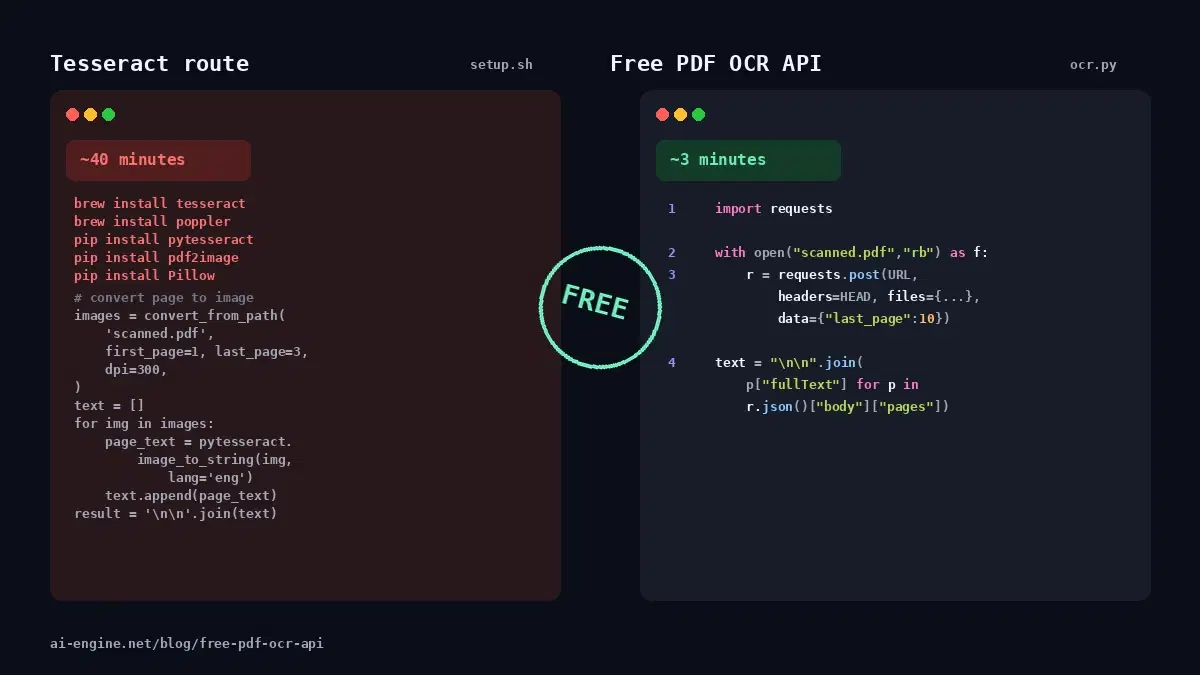
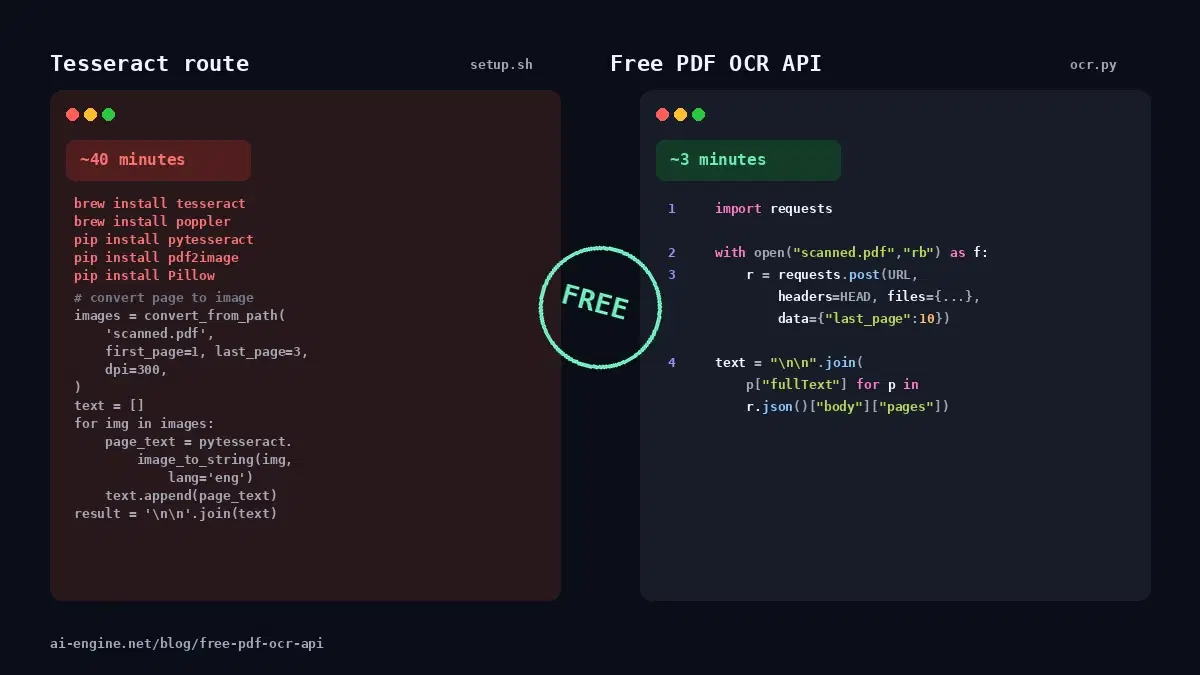
"Free PDF OCR" almost always means one of three things, and each comes with strings attached. Tesseract is free but needs the binary, Poppler, pdf2image, and per-page rasterization, which is a forty-minute setup the first time. Online tools like Smallpdf or PDF24 are free but cap file size, drop pages, watermark output, or ship your document through someone else's browser. Free trial APIs from the big clouds are technically free but require a credit card on file and an account setup that takes longer than the OCR itself.
A free-tier cloud OCR API on the RapidAPI marketplace skips all three compromises. You sign up once, grab a key, and call the endpoint from any language that can send an HTTP POST. Here is what that looks like.
The 30-Second Quickstart
Three steps, no install beyond the Python requests library.
- Sign up at OCR Wizard on RapidAPI, subscribe to the free plan, and copy your key from the dashboard.
- Paste the key into the script below.
- Run it against any scanned PDF on your machine, up to 10 pages per call.
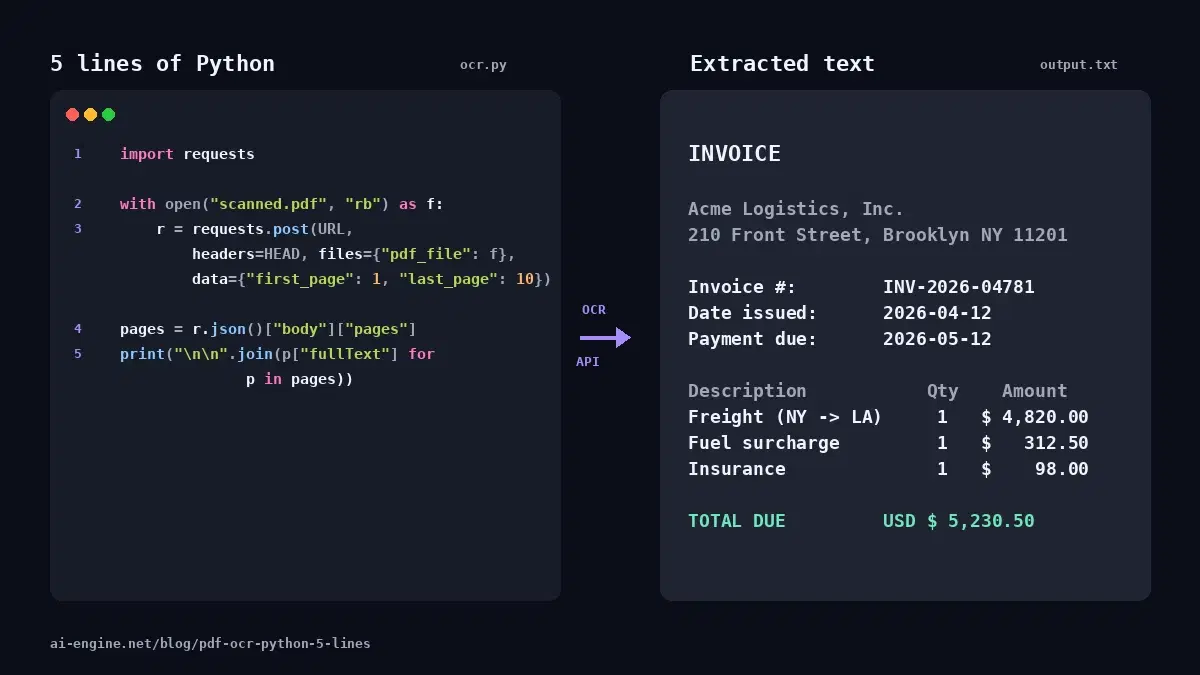
import requests

with open("scanned.pdf", "rb") as f:
    r = requests.post(
        "https://ocr-wizard.p.rapidapi.com/ocr-pdf",
        headers={"x-rapidapi-key": "YOUR_API_KEY", "x-rapidapi-host": "ocr-wizard.p.rapidapi.com"},
        files={"pdf_file": f},
        data={"first_page": 1, "last_page": 10},
    )

print("\n\n".join(p["fullText"] for p in r.json()["body"]["pages"]))
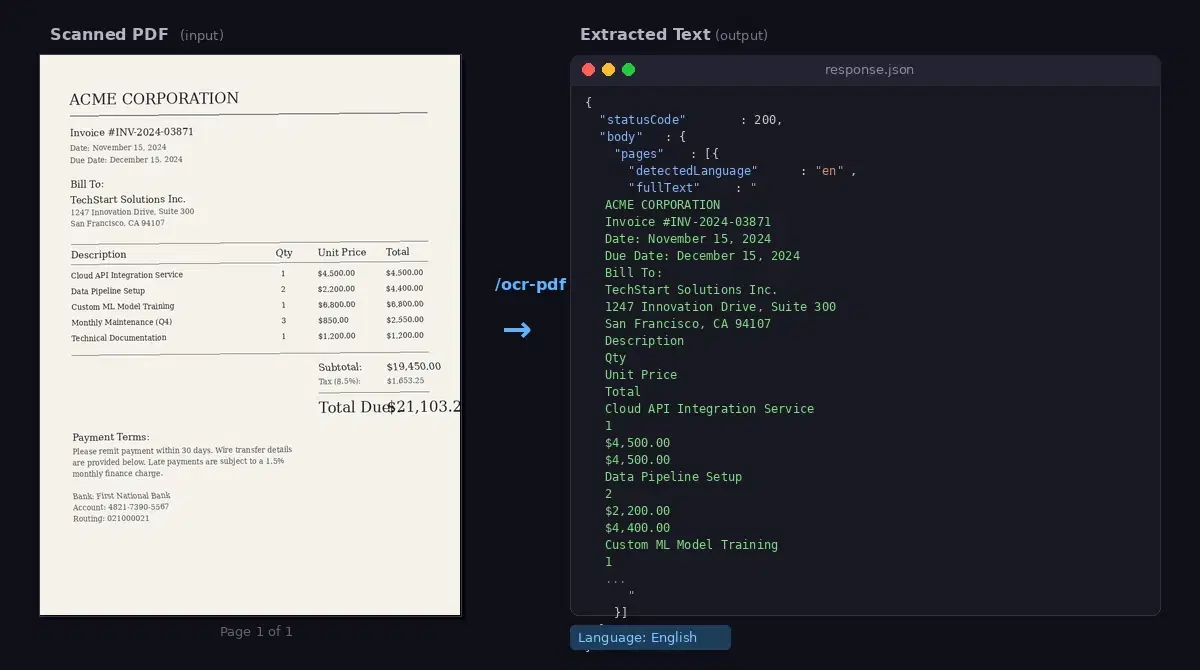
That is the whole client. No model weights to download, no native binary to install, no per-page image conversion. The response comes back as JSON with one entry per page.
What You Get on the Free Tier
The free plan covers everything you would need for prototyping, weekend projects, or personal automation:
- Scanned PDF text extraction via the
/ocr-pdfendpoint, with per-pagefullTextand language detection. - Image OCR on the sibling
/ocrendpoint, which takes JPEG and PNG instead of PDF, useful for phone photos of receipts or screenshots. - Automatic language detection per page or per image, returned as a two-letter code in the response.
- HTTPS everywhere, multipart upload (no file size gymnastics with base64 strings).
See the OCR Wizard API page for the current free-tier limits and the paid tiers if you outgrow them.
Why a Cloud API Beats "Free" Alternatives
The honest comparison:
| Option | Setup | Per-call cost | Catch |
|---|---|---|---|
| Tesseract + Poppler | 30 to 60 minutes first time | Free, your CPU | Accuracy drops on noisy scans, manual page rasterization |
| Browser tools (Smallpdf, PDF24, iLovePDF) | None | Free with caps | File size limits, watermarks, manual workflow, no API |
| AWS Textract / Google Document AI free tier | 30 to 60 minutes (IAM, SDK, billing setup) | Free up to a quota, then billed | Credit card required, lock-in to one cloud's SDK |
| Free RapidAPI OCR endpoint | 2 minutes (RapidAPI signup + key) | Free up to plan limit | 10-page range cap per call |
The decision usually comes down to two factors: can you stomach the Tesseract install for the offline / fully-free guarantee, or do you want to ship something tonight? If the answer is the second, the free tier on the API gets you to working OCR faster than any alternative on this list.
Pair It with an LLM for Structured Output
Raw OCR text is rarely the final deliverable. The most common next step is feeding it to a model that pulls out the fields you care about (invoice number, total, dates, parties to a contract). One free OCR call plus one cheap LLM call gives you a structured record:
from openai import OpenAI  # pip install openai

client = OpenAI(api_key="YOUR_OPENAI_KEY")
text = "\n\n".join(p["fullText"] for p in r.json()["body"]["pages"])

prompt = f"Extract invoice_number, date, vendor, and total as JSON:\n{text}"
resp = client.chat.completions.create(
    model="gpt-4o-mini",
    messages=[{"role": "user", "content": prompt}],
    response_format={"type": "json_object"},
)
print(resp.choices[0].message.content)
For a deeper walk-through of OCR + LLM pipelines, the ID Card to JSON tutorial shows the exact pattern on a different document type.
When the Free Tier Stops Being Enough
Three signs you have outgrown the free plan:
- You hit the monthly quota mid-week and your job fails. Bump up to a higher tier on the same API page; the code does not change.
- You have a PDF longer than 10 pages and need it processed in a single call. The 10-page cap is a per-call limit, not a per-account limit; chunking still works on the free plan, but a paid plan gives you the higher per-month request budget that chunking requires.
- You need the OCR result inside an SLA, faster, and want priority processing.
Next Step
Sign up on RapidAPI, copy your key, paste it into the script above, and run it against a scanned PDF on your machine. The whole loop takes under three minutes. When you want more code (cURL, JavaScript, chunking for long PDFs), see the full PDF OCR developer guide or the focused 5-line Python tutorial.
Frequently Asked Questions
- What does 'free' actually mean here?
- Free means a free tier on the RapidAPI marketplace listing for OCR Wizard. You sign up for a RapidAPI account (no credit card required), subscribe to the free plan, and use the resulting API key in your requests. The free tier covers PDF and image OCR on the same endpoint family. To stay free, stay under the free-tier request volume and stick to the standard endpoints; the API page lists the current limits.
- Do I need to install Tesseract, Poppler, or any OCR model?
- No. The cloud API handles OCR on its servers, so the only thing you install locally is the HTTP client of your language (requests in Python, fetch in JavaScript, curl in your shell). No Tesseract binary, no Poppler PDF rasterizer, no model weights to download. That is the main reason developers reach for the API instead of the open-source stack.
- Can I run this against any scanned PDF?
- Yes for PDFs up to 10 pages in a single call. The API caps the first_page-to-last_page range per request at 10. For longer documents, loop the same call with a sliding 10-page window across the file and concatenate results. The PDF can be a real scan, a phone photo saved as PDF, or a text-based PDF; the API handles all three.