This tutorial uses the OCR Wizard API. See the docs, live demo, and pricing.
Screenshots are everywhere in developer workflows. Error logs from a terminal, metrics from a dashboard, text from a chat conversation, UI copy from a design mockup. The text inside those images is useful, but it's trapped in pixels. Copying it manually is tedious, and doing it at scale is impossible. An OCR API can extract text from any screenshot in a single HTTP call. In this tutorial, you'll use the OCR Wizard API to pull text out of screenshots programmatically with Python.
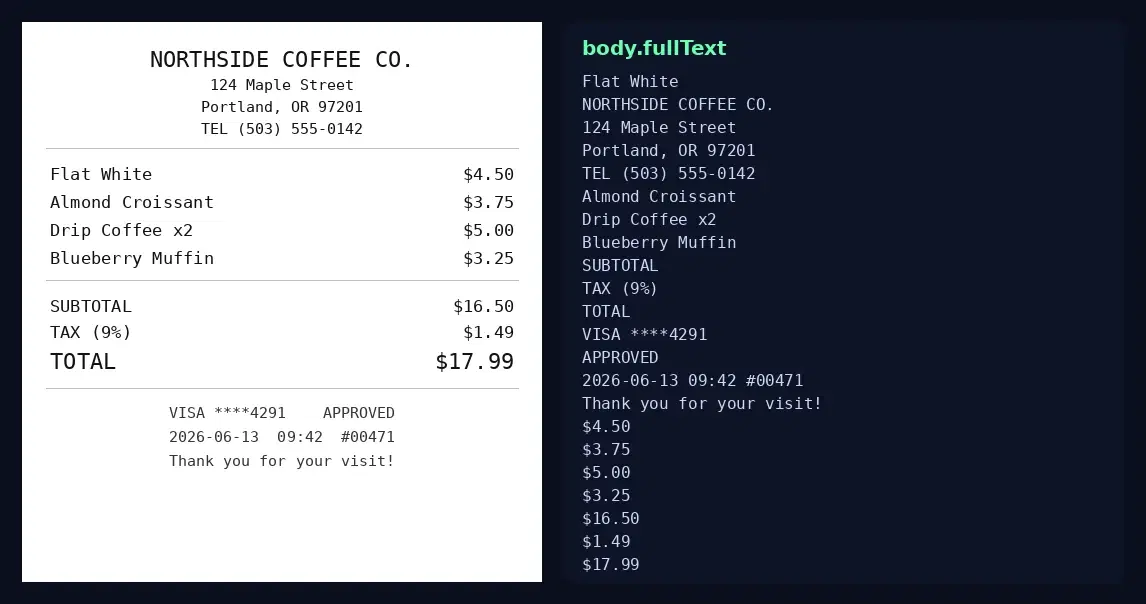
body.fullText the endpoint returned comes out, line by lineWhy Not Tesseract for Screenshots?
Tesseract is the go-to open-source OCR engine, but it struggles with screenshots. Colored backgrounds, UI elements (buttons, menus, overlays), and non-standard fonts confuse it. Some developers add GPT-3.5 on top just to clean up Tesseract's noisy output. That's two API calls, a local install, and extra latency to get something readable. A cloud OCR API handles screenshots natively: you send the image, get back clean text. No install, no cleanup step. For the fuller case against Tesseract, see Tesseract is dead and the best OCR APIs comparison.
Extracting Text from a Screenshot
The OCR Wizard API exposes a /ocr endpoint that accepts an image (file upload or URL) and returns the full extracted text, detected language, and word-level bounding box annotations.
cURL
curl -X POST \
  'https://ocr-wizard.p.rapidapi.com/ocr' \
  -H 'x-rapidapi-host: ocr-wizard.p.rapidapi.com' \
  -H 'x-rapidapi-key: YOUR_API_KEY' \
  -F 'image=@screenshot.png'
Python
import requests

url = "https://ocr-wizard.p.rapidapi.com/ocr"
headers = {
    "x-rapidapi-host": "ocr-wizard.p.rapidapi.com",
    "x-rapidapi-key": "YOUR_API_KEY",
}

with open("screenshot.png", "rb") as f:
    response = requests.post(url, headers=headers, files={"image": f})

data = response.json()
print(data["body"]["fullText"])
JavaScript (Node.js)
const fs = require("fs");
const FormData = require("form-data");

const form = new FormData();
form.append("image", fs.createReadStream("screenshot.png"));

const response = await fetch(
  "https://ocr-wizard.p.rapidapi.com/ocr",
  {
    method: "POST",
    headers: {
      "x-rapidapi-host": "ocr-wizard.p.rapidapi.com",
      "x-rapidapi-key": "YOUR_API_KEY",
      ...form.getHeaders(),
    },
    body: form,
  }
);

const data = await response.json();
console.log(data.body.fullText);
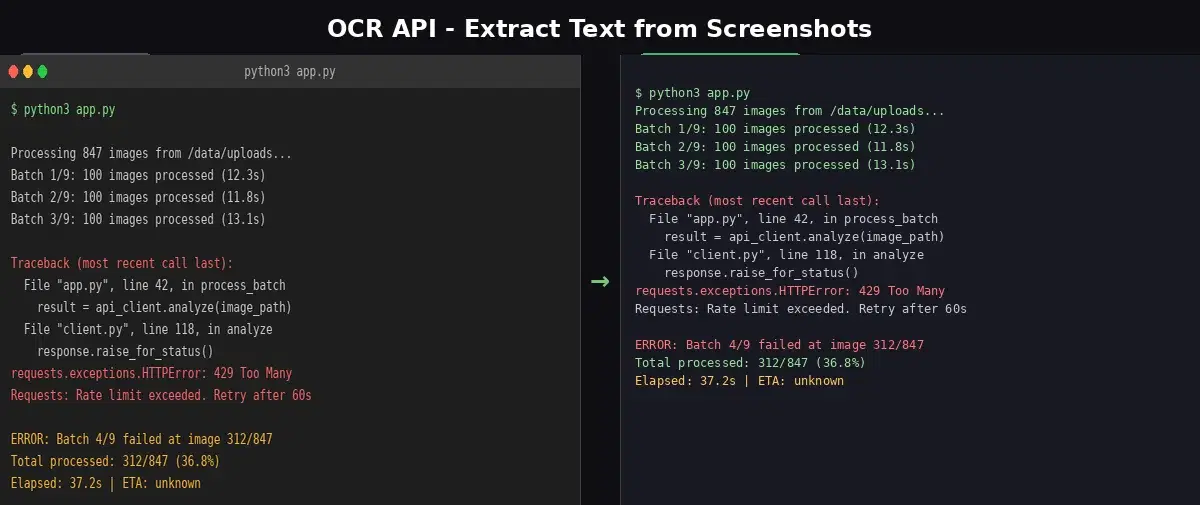
Here's the real output from calling the API on the terminal screenshot above. The fullText field contains all the text in reading order, and annotations gives you word-level bounding boxes:
{
  "statusCode": 200,
  "body": {
    "fullText": "$ python3 app.py\nProcessing 847 images from /data/uploads...\nBatch 1/9: 100 images processed (12.3s)\nBatch 2/9: 100 images processed (11.8s)\nBatch 3/9: 100 images processed (13.1s)\nTraceback (most recent call last):\n  File \"app.py\", line 42, in process_batch\n    result = api_client.analyze(image_path)\n  File \"client.py\", line 118, in analyze\n    response.raise_for_status()\nrequests.exceptions.HTTPError: 429 Too Many\nRequests: Rate limit exceeded. Retry after 60s\nERROR: Batch 4/9 failed at image 312/847\nTotal processed: 312/847 (36.8%)\nElapsed: 37.2s | ETA: unknown",
    "detectedLanguage": "en",
    "annotations": [
      {
        "text": "python3",
        "boundingPoly": [
          { "x": 337, "y": 8 }, { "x": 400, "y": 9 },
          { "x": 400, "y": 24 }, { "x": 337, "y": 23 }
        ]
      }
    ]
  }
}
Every word from the terminal was captured, including the traceback, error code (429), file names, line numbers, and progress stats. No noise, no missing characters.
Handling Different Screenshot Types
Terminal and error logs
Terminal screenshots have monospaced text on dark backgrounds. OCR handles these well because the contrast is high and the font is consistent. The extracted text preserves line breaks, so you can parse stack traces, grep for error codes, or pipe the output into a log aggregator.
Dashboards and analytics
Screenshots of Grafana, Google Analytics, or internal dashboards contain numbers mixed with labels, charts, and colored backgrounds. The API extracts the text elements and skips the graphical parts. You get metric names and values that you can parse into structured data.
Chat conversations and messages
Screenshots of Slack, Discord, or WhatsApp messages contain usernames, timestamps, and message bodies. The OCR reads them in top-to-bottom order. Useful for archiving conversations, extracting action items, or feeding customer feedback into a pipeline.
UI mockups and design files
Screenshots of Figma designs or web pages contain button labels, headings, and body text. Extracting these helps QA teams verify that the deployed UI matches the design spec, or lets content teams audit copy across screens without clicking through every page.
Structuring Extracted Text with GPT
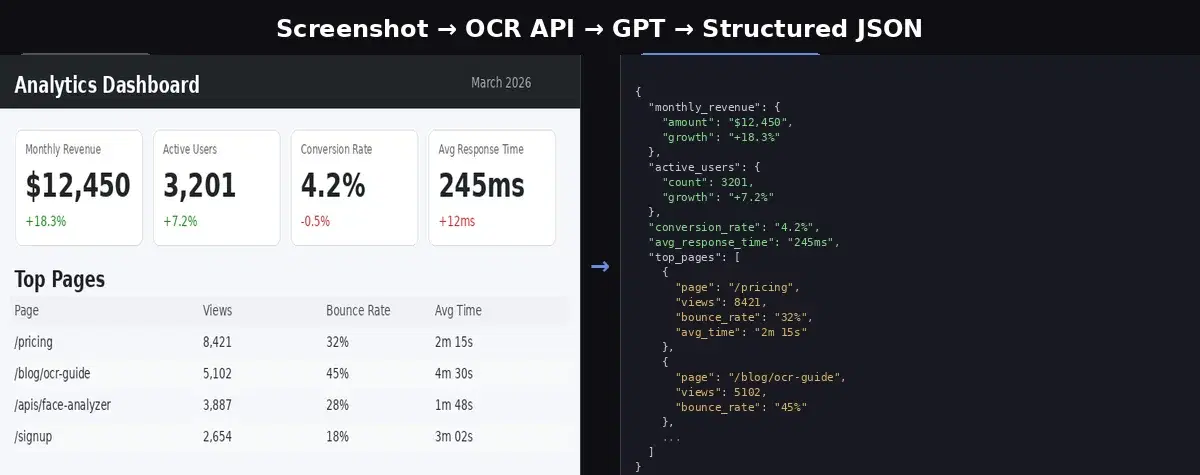
The OCR API gives you raw text. For some use cases, you need structured data. A dashboard screenshot contains scattered metrics that you want as a JSON object. An error screenshot has a traceback you want parsed into error code, message, and file location. Combine the OCR API with GPT-4o mini to go from pixels to structured JSON in two API calls.
The code
import requests
from openai import OpenAI

# Step 1: Extract text from the screenshot
ocr_url = "https://ocr-wizard.p.rapidapi.com/ocr"
ocr_headers = {
    "x-rapidapi-host": "ocr-wizard.p.rapidapi.com",
    "x-rapidapi-key": "YOUR_API_KEY",
}

with open("dashboard_screenshot.png", "rb") as f:
    ocr_response = requests.post(ocr_url, headers=ocr_headers, files={"image": f})

raw_text = ocr_response.json()["body"]["fullText"]

# Step 2: Structure the text with GPT-4o mini
client = OpenAI()
completion = client.chat.completions.create(
    model="gpt-4o-mini",
    messages=[
        {
            "role": "system",
            "content": "Extract structured data from the following text. Return valid JSON only.",
        },
        {"role": "user", "content": raw_text},
    ],
)

print(completion.choices[0].message.content)
What the OCR returns (raw text)
Analytics Dashboard
Monthly Revenue
Active Users
Conversion Rate
$12,450
+18.3%
Top Pages
3,201
+7.2%
4.2%
-0.5%
March 2026
Avg Response Time
245ms
+12ms
Page  Views  Bounce Rate  Avg Time
/pricing  8,421  32%  2m 15s
/blog/ocr-guide  5,102  45%  4m 30s
/apis/face-analyzer  3,887  28%  1m 48s
/signup  2,654  18%  3m 02s
The OCR captures every label and number, but the text is flat. Metrics are separated from their values. The table rows lost their column alignment. You can't JSON.parse() this.
What GPT-4o mini returns (structured JSON)
{
  "monthly_revenue": { "amount": "$12,450", "growth_rate": "+18.3%" },
  "active_users": { "count": 3201, "growth_rate": "+7.2%" },
  "conversion_rate": "4.2%",
  "avg_response_time": { "time": "245ms", "change": "+12ms" },
  "date": "March 2026",
  "top_pages": [
    { "page": "/pricing", "views": 8421, "bounce_rate": "32%", "avg_time": "2m 15s" },
    { "page": "/blog/ocr-guide", "views": 5102, "bounce_rate": "45%", "avg_time": "4m 30s" },
    { "page": "/apis/face-analyzer", "views": 3887, "bounce_rate": "28%", "avg_time": "1m 48s" },
    { "page": "/signup", "views": 2654, "bounce_rate": "18%", "avg_time": "3m 02s" }
  ]
}
GPT correctly paired each metric with its value, converted the table into an array of objects, and typed the numbers as integers. This is real output from a real API call, not a mockup.
The same approach works for error logs. Feed the OCR output from the terminal screenshot into GPT with a more specific prompt, and you get:
{
  "command": "python3 app.py",
  "error_type": "HTTPError",
  "error_message": "429 Too Many Requests: Rate limit exceeded. Retry after 60s",
  "file": "client.py",
  "line": 118,
  "progress": {
    "total_processed": 312,
    "total_images": 847,
    "percentage": "36.8%",
    "elapsed_time": "37.2s"
  },
  "traceback": [
    { "file": "app.py", "line": 42, "function": "process_batch" },
    { "file": "client.py", "line": 118, "function": "analyze" }
  ]
}
This is the same pattern used in the ID Card to JSON tutorial - OCR extracts the text, a language model structures it. The difference from approaches that use GPT to clean up bad OCR output is that here the OCR result is already accurate. GPT adds structure, not quality.
Using Screenshot OCR for QA Automation
One of the strongest use cases for screenshot OCR is automated UI testing. Instead of relying on brittle CSS selectors or accessibility attributes, you can take a screenshot and verify the visible text directly.
from playwright.sync_api import sync_playwright
import requests

OCR_URL = "https://ocr-wizard.p.rapidapi.com/ocr"
OCR_HEADERS = {
    "x-rapidapi-host": "ocr-wizard.p.rapidapi.com",
    "x-rapidapi-key": "YOUR_API_KEY",
}

def get_page_text(url: str) -> str:
    """Take a screenshot of a URL and extract all visible text."""
    with sync_playwright() as p:
        browser = p.chromium.launch()
        page = browser.new_page()
        page.goto(url)
        page.screenshot(path="/tmp/page.png", full_page=True)
        browser.close()

    with open("/tmp/page.png", "rb") as f:
        resp = requests.post(OCR_URL, headers=OCR_HEADERS, files={"image": f})

    return resp.json()["body"]["fullText"]

# Use it in tests
text = get_page_text("https://myapp.com/dashboard")
assert "Welcome back" in text
assert "0 errors" in text
This approach catches visual regressions that DOM-based tests miss: text that's rendered but hidden by CSS, overlapping elements, font rendering issues, or content that only appears after JavaScript executes.
Tips and Best Practices
- Use PNG, not JPG, for screenshots. PNG is lossless. JPG compression adds artifacts around text edges that reduce OCR accuracy. Screenshots are already PNG by default on most systems.
- Crop before sending. If you only need text from one part of the screenshot (a specific panel, a dialog box), crop it first. Smaller images process faster and give more focused results.
- Use bounding boxes for layout-aware extraction. The API returns word-level coordinates in the
annotationsarray. Use these to group text by region (e.g., sidebar vs main content) when the reading order alone isn't enough. - Multi-language works automatically. The API detects the language and handles mixed-language screenshots (e.g., a Japanese UI with English labels). Check the
detectedLanguagefield in the response. - Batch screenshots with a loop. If you're processing many screenshots (CI pipeline, monitoring), just loop through the files and call the API for each one. The endpoint handles concurrency well.
Extracting text from screenshots is a one-call operation with the OCR Wizard API. No local OCR engine to install, no GPT cleanup needed. Send the image, get back the text. Combine it with a language model for structured extraction, or plug it into your test suite for visual regression testing. The text in your screenshots is no longer trapped.
Frequently Asked Questions
- How accurate is OCR for screenshots?
- Very accurate. Screenshots contain digitally rendered text (not handwriting or scanned paper), which is the easiest input for OCR. Cloud OCR APIs handle colored backgrounds, UI elements, and mixed fonts well. Accuracy drops mainly with very small text (under 10px), heavy image compression (JPG artifacts), or text overlapping graphics.
- What is the best OCR API for screenshots?
- For developers, a cloud OCR API like OCR Wizard is the fastest option. You send the image via HTTP, get back the text in under a second. No local install, no GPU, no model management. Tesseract is a free alternative but requires local installation and struggles with colored backgrounds and UI elements common in screenshots.
- Can I use screenshot OCR for automated UI testing?
- Yes. Take a screenshot with Playwright or Selenium, send it to an OCR API, and assert that the expected text is present. This catches visual regressions that DOM-based tests miss: text hidden by CSS, overlapping elements, or content rendered by JavaScript. It works on any page without writing element-specific selectors.