This tutorial uses the OCR Wizard API. See the docs, live demo, and pricing.
Turning an image of a document, receipt, or handwritten note into machine-readable text used to require heavy on-premise software and weeks of setup. Today, an OCR API lets you extract text from virtually any image with a single HTTP request. In this guide you will learn how the technology works, see working code in three languages, and discover the best practices that separate good integrations from great ones.
Why Use an OCR API?
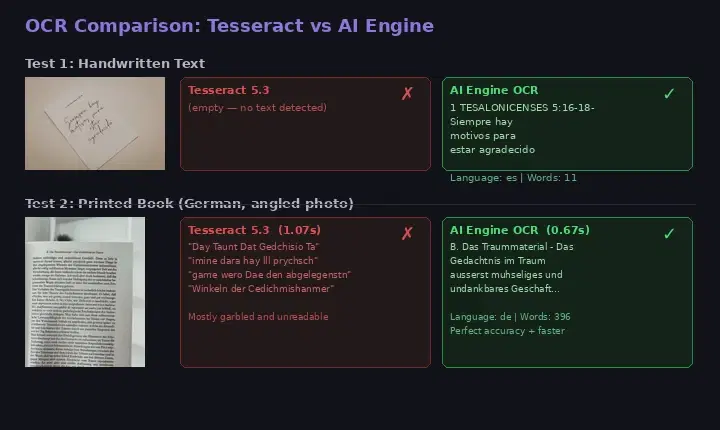
Optical Character Recognition (OCR) converts pixels into characters. While open-source engines like Tesseract exist, they demand careful preprocessing — deskewing, binarization, language-model tuning — before they produce usable output. A cloud-hosted OCR API handles all of that behind the scenes, giving you clean text and confidence scores without the infrastructure headache.
- No infrastructure — Skip GPU provisioning and model management. The API handles scaling for you.
- Multilingual support — Recognize text in dozens of languages and scripts out of the box.
- Handwriting recognition — Modern deep-learning OCR models can read cursive and messy handwriting that older engines simply cannot.
- Structured output — Get bounding boxes, line-level text, and confidence values so you know exactly where each word appears on the page.
Whether you are digitizing paper archives or building an expense tracker that reads receipts, an OCR API is the fastest path from idea to working feature.
How the OCR Wizard API Works
The OCR Wizard API accepts an image (URL or base64) and returns the extracted text along with positional metadata. Let's look at integration examples.
cURL
Test the endpoint directly from your terminal:
# Upload a local file
curl -X POST 'https://ocr-wizard.p.rapidapi.com/ocr' \
  -H 'x-rapidapi-host: ocr-wizard.p.rapidapi.com' \
  -H 'x-rapidapi-key: YOUR_API_KEY' \
  -F 'image=@document.jpg'

# Or send an image URL
curl -X POST 'https://ocr-wizard.p.rapidapi.com/ocr' \
  -H 'x-rapidapi-host: ocr-wizard.p.rapidapi.com' \
  -H 'x-rapidapi-key: YOUR_API_KEY' \
  -H 'Content-Type: application/x-www-form-urlencoded' \
  -d 'url=https://example.com/document.jpg'
Python
A minimal Python script that sends an image and prints the recognized text:
import requests

url = "https://ocr-wizard.p.rapidapi.com/ocr"
headers = {
    "x-rapidapi-host": "ocr-wizard.p.rapidapi.com",
    "x-rapidapi-key": "YOUR_API_KEY",
}

# Upload a local file
with open("document.jpg", "rb") as f:
    response = requests.post(
        url,
        headers=headers,
        files={"image": ("doc.jpg", f, "image/jpeg")},
    )

data = response.json()
print(f"Language: {data['body']['detectedLanguage']}")
print(f"Text: {data['body']['fullText']}")

# Word-level positions
for word in data["body"]["annotations"]:
    print(f"  '{word['text']}' at {word['boundingPoly']}")
JavaScript (fetch)
If you are working in a Node.js or browser environment, here is the equivalent call:
const formData = new FormData();
formData.append("image", fileInput.files[0]);

const response = await fetch(
  "https://ocr-wizard.p.rapidapi.com/ocr",
  {
    method: "POST",
    headers: {
      "x-rapidapi-host": "ocr-wizard.p.rapidapi.com",
      "x-rapidapi-key": "YOUR_API_KEY",
    },
    body: formData,
  }
);

const data = await response.json();
console.log("Language:", data.body.detectedLanguage);
console.log("Text:", data.body.fullText);
data.body.annotations.forEach((word) => console.log(word.text));
See the Results
Below is a real example. The handwritten note on the left was sent to the API, and the extracted text on the right shows accurate recognition — including punctuation and line breaks.

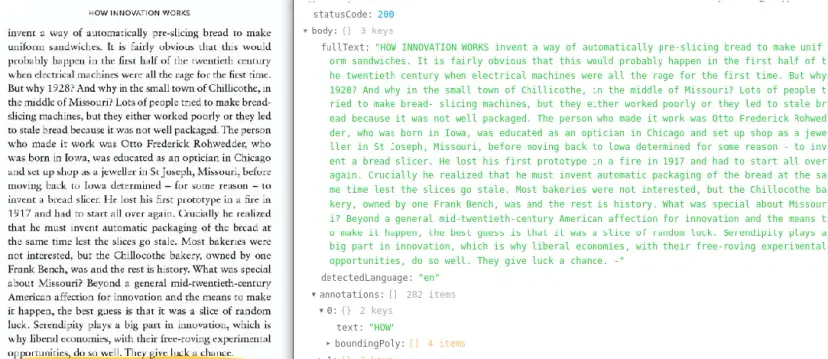
The API does not just return raw text. It also provides bounding-box coordinates for every detected word in the annotations array, which means you can overlay highlights, build searchable PDFs, or feed the data into downstream NLP pipelines. The detected language is returned in detectedLanguage automatically.
Real-World Use Cases
The OCR Wizard API fits into a surprising number of workflows:
- Receipt and invoice scanning — Parse totals, dates, and vendor names from photographed receipts and feed them directly into your accounting software.
- Document digitization — Convert scanned contracts, medical records, or legal filings into searchable, editable text at scale.
- Handwriting-to-text — Build educational apps that let students photograph handwritten homework and get a typed transcript in seconds.
- License plate and ID reading — Automate identity verification or parking management by extracting characters from photos of plates and cards.
For richer scene understanding, you can pair OCR with object detection to first locate a document region in a cluttered photo and then extract its text.
Tips and Best Practices
Follow these guidelines to maximize the accuracy and reliability of your OCR integration:
- Provide clear, well-lit images. Shadows, glare, and extreme angles degrade recognition quality. If users are capturing photos, guide them to use good lighting and a flat surface.
- Let the API detect the language. The API automatically detects the document language and returns it in the
detectedLanguagefield. This works reliably across dozens of languages and even handles multilingual documents. - Crop to the region of interest. Sending the full camera frame when you only need one paragraph wastes bandwidth and can introduce noise from surrounding objects. Crop first, then call the API.
- Use word-level bounding boxes. The API returns bounding box coordinates for every detected word in the
annotationsarray. Use these to overlay highlights, build searchable PDFs, or extract text from specific regions of the image. - Batch intelligently. If you have a stack of 500 scanned pages, send them in parallel with reasonable concurrency (five to ten at a time) rather than sequentially. This cuts total processing time dramatically while staying within rate limits.
Text extraction is a foundational building block for document-driven applications. With the OCR Wizard API, you skip months of model training and infrastructure work and go straight to shipping features your users actually need. Give it a try with a handwritten note or a scanned receipt and see how fast you can go from image to structured data.
Frequently Asked Questions
- How do I extract text from an image with an API?
- Send the image to an OCR API endpoint via HTTP POST (as a file upload or URL). The API returns extracted text as JSON, typically with word-level bounding boxes and detected language.
- Can an OCR API read handwritten text?
- Yes. Modern OCR APIs use deep learning models trained on handwritten text. They can recognize handwriting in multiple languages, though accuracy depends on legibility and image quality.
- What image formats does an OCR API support?
- Most OCR APIs accept JPEG, PNG, WebP, BMP, and TIFF. Some also support PDF files with page-range control for multi-page document processing.