This tutorial uses the Background Removal API. See the docs, live demo, and pricing.
AI assistants are now where a lot of image work starts. You ask Claude Code to prepare product photos for a store, or Cursor to generate assets for an app, and the next step is always the same: the background has to go. A background removal MCP server gives the assistant that tool. This tutorial installs our open source server in one command, runs a real session in Claude Code, and shows how the tool works if you want to build your own on top of the Background Removal API.
There is also a deadline. The remove.bg self-service API stops on December 1, 2026. MCP connectors that call it with a remove.bg key, such as the Composio and Zapier remove.bg integrations, stop with it. If your assistant workflows use one, this server is a direct replacement. For code that calls remove.bg directly, see our remove.bg API migration guide.
What the Server Gives Your Assistant
MCP (Model Context Protocol) is the standard that Claude Code, Claude Desktop, Cursor and many other assistants use to call external tools. Our server exposes six tools. Three of them edit backgrounds:
| Tool | What it does | Saved as |
|---|---|---|
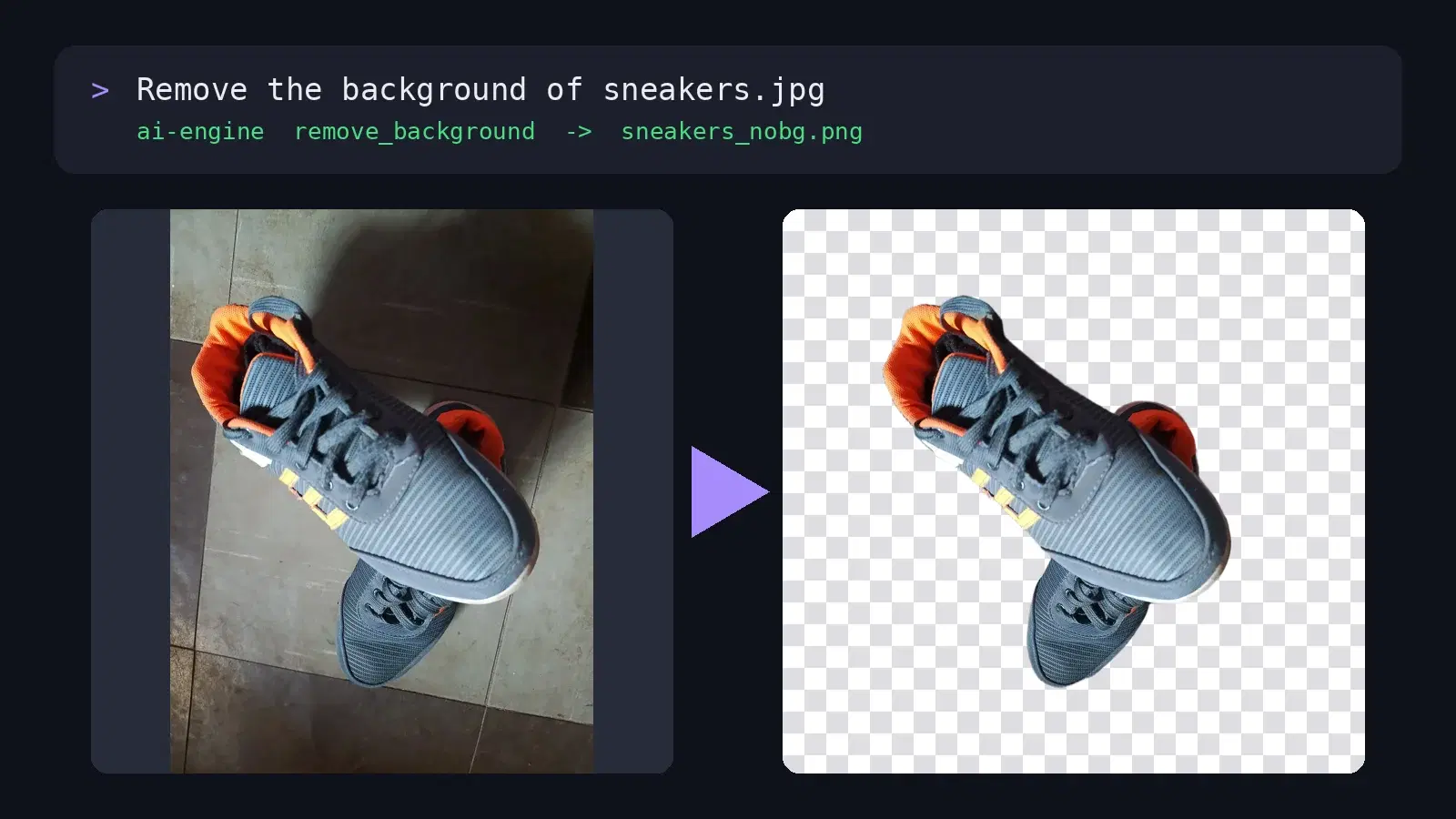
remove_background | Transparent PNG cutout | name_nobg.png |
color_background | Subject on a solid color, white by default | name_color.png |
blur_background | Subject sharp, background blurred | name_blur.png |
Each tool takes a local path or a public image URL, and an optional output_path. The other three tools read text from images and PDFs with the OCR Wizard API and check images before publishing with the NSFW Detect API. The code is in our api-examples repository on GitHub.
Get an API Key
- Create a free account on RapidAPI.
- Open the Background Removal API and subscribe to the free plan. Do the same for OCR Wizard and NSFW Detect if you want those tools.
- Copy your key: on the API page, open the Endpoints tab, the key is the value of the
X-RapidAPI-Keyheader. The same key works for all three APIs.
The server reads the key from the RAPIDAPI_KEY environment variable. It never writes it to disk and never returns it to the assistant.
Install in Claude Code, Claude Desktop or Cursor
You need uv, the Python package runner. uvx downloads the server from GitHub and runs it, there is nothing else to install. In Claude Code, one command adds it:
claude mcp add ai-engine -e RAPIDAPI_KEY=your_key -- \
  uvx --from "git+https://github.com/ai-engine-dev/api-examples#subdirectory=mcp-server" ai-engine-mcp
In Claude Desktop, add this block to claude_desktop_config.json (Settings, Developer, Edit Config) and restart the app. Cursor uses the same block in ~/.cursor/mcp.json:
{
  "mcpServers": {
    "ai-engine": {
      "command": "uvx",
      "args": [
        "--from",
        "git+https://github.com/ai-engine-dev/api-examples#subdirectory=mcp-server",
        "ai-engine-mcp"
      ],
      "env": { "RAPIDAPI_KEY": "your_key" }
    }
  }
}
Replace your_key with your RapidAPI key. In Claude Code, /mcp lists the server and its six tools once it is connected.
A Real Session: Product Photos for a Store
We tested the server installed from GitHub in Claude Code, on a folder with three product photos and a portrait. All four are public domain photos from Wikimedia Commons. One prompt:
> Remove the background of every photo in ./products, put each one on a white
  background for my online store and save them in ./store. Then blur the
  background of portrait.jpg for my about page.
The assistant listed the folder, created ./store and sent the four tool calls at once (paths shortened):
ai-engine - color_background(image: "products/handbag.jpg", color: "#FFFFFF", output_path: "store/handbag.png")
ai-engine - color_background(image: "products/runner.jpg", color: "#FFFFFF", output_path: "store/runner.png")
ai-engine - color_background(image: "products/sneakers.jpg", color: "#FFFFFF", output_path: "store/sneakers.png")
ai-engine - blur_background(image: "portrait.jpg", output_path: "portrait_blur.png")

All three product photos are now on a white background in ./store, and the
portrait has a blurred background. The originals are untouched.

- store/handbag.png (850x900)
- store/runner.png (1280x1067)
- store/sneakers.png (1280x1707)
- portrait_blur.png (1280x853), using the default blur strength of 15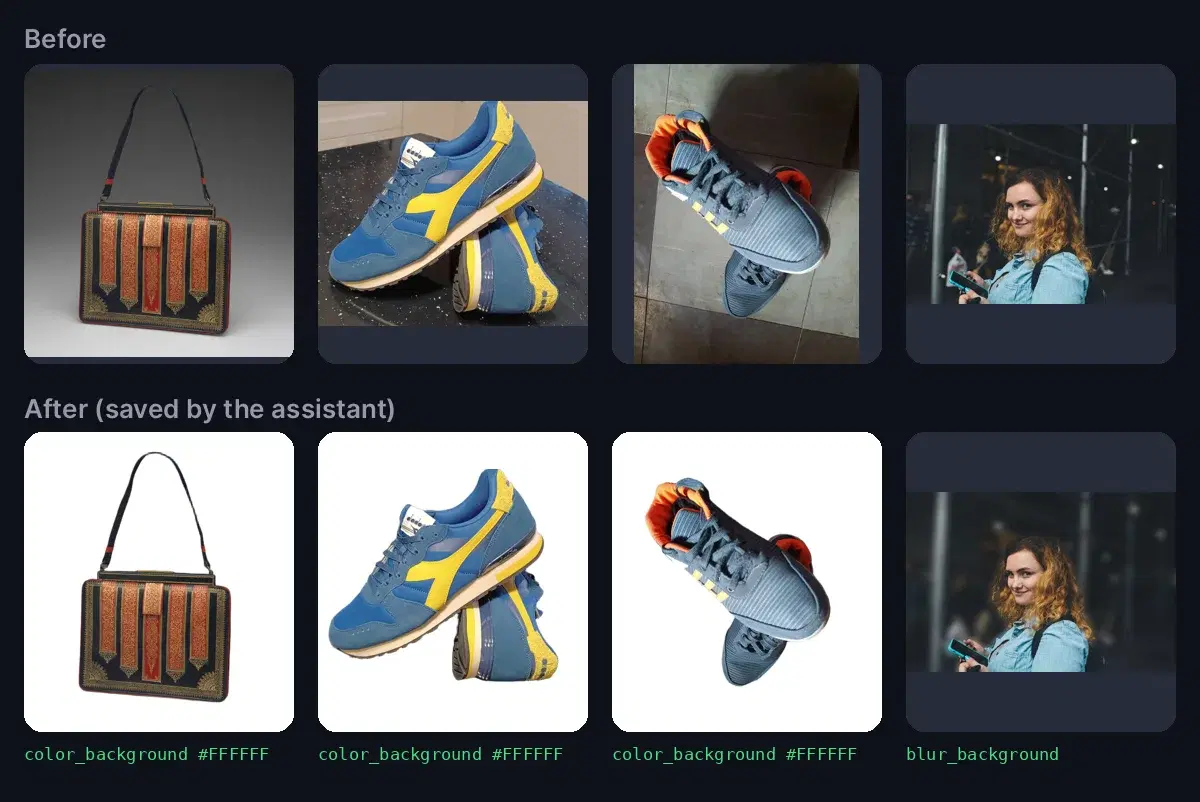
The whole session took 39 seconds, including the assistant opening each result to check it. Notice what the assistant handled without being told: it picked color_background rather than removing the background and compositing white itself, chose the output names from the prompt, and kept the originals. The curly hair in the portrait stays sharp while the street behind is blurred.
We ran a second session with three more prompts, and each one worked as written:
- "Check that portrait.jpg is safe to publish, then cut it out as a transparent PNG" called
check_nsfw(safe, no labels), thenremove_background. Useful for user uploads. - "Put runner.jpg on our brand color #0F172A" passed the color straight to
color_background. - "Center each product in ./store on a 1200x1200 white square" cut the products out again, then wrote a few lines of Pillow to scale each one into a 1000 pixel box with a 100 pixel margin. Every product ends up the same size in a catalog grid.
Test the Server Without an Assistant
To check your key and setup, or to call the tools from your own agent, use the MCP Python client. This script starts the server the same way Claude Code does, lists the tools and removes one background. Save it as test_server.py:
import asyncio
import os
import sys
import time

from mcp import ClientSession, StdioServerParameters
from mcp.client.stdio import stdio_client

SERVER = StdioServerParameters(
    command="uvx",
    args=["--from", "git+https://github.com/ai-engine-dev/api-examples#subdirectory=mcp-server",
          "ai-engine-mcp"],
    env={**os.environ},  # passes RAPIDAPI_KEY to the server
)


async def main(image):
    async with stdio_client(SERVER) as (read, write):
        async with ClientSession(read, write) as session:
            await session.initialize()
            tools = await session.list_tools()
            print("tools:", ", ".join(t.name for t in tools.tools))
            start = time.time()
            result = await session.call_tool("remove_background", {"image": image})
            print(result.content[0].text)
            print(f"{time.time() - start:.1f} s")


asyncio.run(main(sys.argv[1]))export RAPIDAPI_KEY=your_key
uvx --with mcp python test_server.py runner.jpgtools: remove_background, color_background, blur_background, extract_text, extract_pdf_text, check_nsfw
{
"saved_to": "/home/me/photos/runner_nobg.png",
"image_url": "https://images.ai-engine.net/background-removal-ai/1716d390-0dc9-4771-9aad-f6459d2952cc.png",
"width": 1280,
"height": 1067
}
6.0 sThe result is a 1280x1067 RGBA PNG with a real alpha channel, ready to drop on any background. The assistant only receives this small JSON, not the image, which keeps its context short when it processes a whole folder.
How the Tool Works: Build Your Own
An MCP tool is a Python function with a decorator. Its docstring is what the assistant reads to decide when to call it, so write it for the assistant. This standalone server has one tool and is enough to understand the full one:
import os
from pathlib import Path

import requests
from mcp.server import MCPServer
from mcp.server.mcpserver.exceptions import ToolError

HOST = "background-removal-ai.p.rapidapi.com"
mcp = MCPServer(name="background-removal")


@mcp.tool()
def remove_background(image: str) -> dict:
    """Remove the background of a photo and save a transparent PNG next to it.

    Args:
        image: Path of a local image file.
    """
    key = os.environ.get("RAPIDAPI_KEY")
    if not key:
        raise ToolError("Set the RAPIDAPI_KEY environment variable.")
    path = Path(image).expanduser().resolve()
    if not path.is_file():
        raise ToolError(f"File not found: {path}")
    with open(path, "rb") as f:
        r = requests.post(f"https://{HOST}/remove-background",
                          headers={"x-rapidapi-host": HOST, "x-rapidapi-key": key},
                          files={"image": f}, timeout=120)
    if r.status_code != 200:
        raise ToolError(f"HTTP {r.status_code}: {r.text[:200]}")
    data = r.json()
    out = path.with_name(f"{path.stem}_nobg.png")
    out.write_bytes(requests.get(data["image_url"], timeout=120).content)
    return {"saved_to": str(out), "width": data["width"], "height": data["height"]}


if __name__ == "__main__":
    mcp.run()
Three choices matter:
- Errors are raised as
ToolErrorwith a plain message. The assistant reads it and can fix the problem itself, for example by correcting a path. A missing file returnsFile not found: /home/me/photos/none.jpg. - The tool saves the file and returns its path, not image bytes. The API answers with an
image_url, the server downloads it next to the input. - The key comes from the environment, so the config can be shared without the key.
The full server adds image URLs as input, the color and blur endpoints, OCR and NSFW tools. It needs the MCP Python SDK version 2 or later, where the server class is MCPServer.
Share the Setup with Your Team
To give the same tools to everyone working in a project, commit a .mcp.json at the root that references the variable instead of the key. Claude Code expands ${RAPIDAPI_KEY} from each person's environment:
{
  "mcpServers": {
    "ai-engine": {
      "command": "uvx",
      "args": ["--from", "git+https://github.com/ai-engine-dev/api-examples#subdirectory=mcp-server", "ai-engine-mcp"],
      "env": { "RAPIDAPI_KEY": "${RAPIDAPI_KEY}" }
    }
  }
}
Never commit a config that contains the key itself. claude mcp add stores it in your user config (~/.claude.json), not in the project. If a key leaks, regenerate it in your RapidAPI dashboard.
Replacing a remove.bg MCP Connector
If your assistant used a remove.bg connector, the switch is a config change: remove the old server, add this one with the command above, and keep your prompts. The common remove.bg actions map like this:
| remove.bg action | Tool |
|---|---|
| Remove background, transparent output | remove_background |
bg_color (white or brand color) | color_background with #RRGGBB or R,G,B,A |
| Image URL as input | Any tool, pass the URL as image |
| Portrait blur | blur_background with blur_radius |
The output is always a full resolution PNG. If you need a crop, a resize or a JPG, ask the assistant to do it after the tool call: it can run a few lines of Pillow on the saved file.
Production Tips
- Use the assistant for tasks, scripts for catalogs. A prompt is perfect for a folder of a few dozen images. For thousands of SKUs every night, call the API from a script with retries, as in our background removal at scale guide.
- Name the output folder in the prompt. "Save them in ./store" gives clean paths. Without it, results are saved next to the originals with a suffix.
- Ask for a consistent frame. Products keep their position in the original photo. For a catalog grid, add "then center each product on a 1200x1200 white square", as in the second session above.
- Check user content first. When images come from users, chain
check_nsfwbefore any edit or upload. - Clothing and products on models need their own care, see clothing background removal.
Next Step
Get a free key on the Background Removal API page, run the claude mcp add command, and ask your assistant to clean up a folder of your own photos. For agencies and apps processing large volumes, custom plans are available.
Sources
- AI Engine MCP server source code (GitHub, MIT)
- Model Context Protocol documentation
- remove.bg FAQ (API shutdown)
- Composio remove.bg toolkit and Zapier remove.bg MCP
- Test photos, all CC0 on Wikimedia Commons: sneakers, runners, tooled leather handbag, outdoor portrait
Frequently Asked Questions
- What is a background removal MCP server?
- It is a small program that gives an AI assistant such as Claude Code, Claude Desktop or Cursor a tool to remove image backgrounds. MCP (Model Context Protocol) is the standard these assistants use to call external tools. Once the server is installed, you ask in plain language, for example "put every photo in ./products on white", and the assistant calls the tool and saves the files.
- Will the remove.bg MCP connectors keep working after December 1, 2026?
- Connectors that call the remove.bg API with your remove.bg key, such as the Composio and Zapier remove.bg integrations, depend on the self-service API that remove.bg stops on December 1, 2026. Replace them with an MCP server that calls another background removal API, like the open source AI Engine server in this tutorial.
- Is the AI Engine MCP server free?
- The server is open source under the MIT license. It calls the Background Removal API on RapidAPI, which has a free plan to test it. You need one RapidAPI key, read from the RAPIDAPI_KEY environment variable.
- Does my image or API key go to the AI assistant?
- The key never does: the server reads it from the environment and sends it only to RapidAPI. The image is sent by the server to the API, and the assistant only receives the result: the saved file path, the width and the height. The assistant sees the image only if it decides to open the result to check it.