This tutorial uses the Face Analyzer API. See the docs, live demo, and pricing.
An age detection API estimates how old a person is from a photo of their face. You send an image, and you get back an age range for every face in it. This tutorial shows how to call one from Python with the Face Analyzer API, then how to use the result: label a group photo, bucket ages for analytics, and flag possible minors. We tested every script on public domain photos of people whose age is known.
Results on Photos with Known Ages
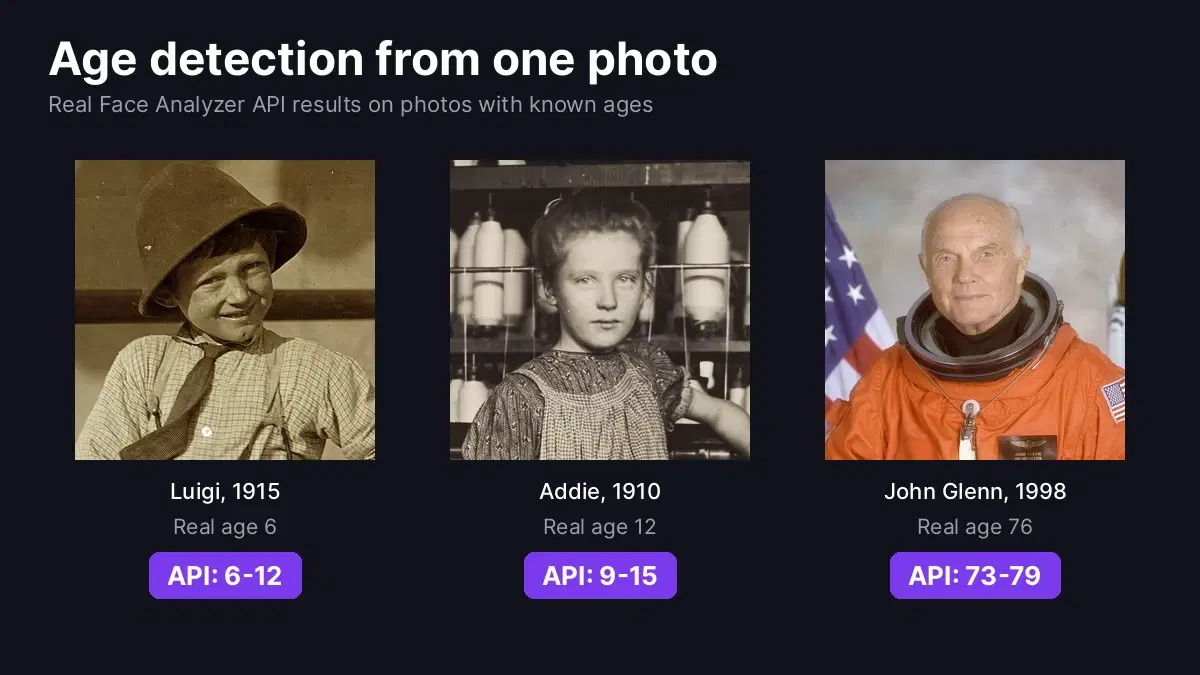
Before writing any code, here is what the API returned on three historical photos where the age of the person is documented. The two children were photographed by Lewis Hine, who wrote their age in his captions. The third photo is John Glenn's official NASA portrait from April 1998, taken when he was 76, a few months before he flew on the Space Shuttle.
| Photo | Real age | API age range | Midpoint |
|---|---|---|---|
| Luigi, newsboy, Sacramento, 1915 | 6 | 6 to 12 | 9 |
| Addie Card, mill spinner, Vermont, 1910 | 12 | 9 to 15 | 12 |
| John Glenn, NASA portrait, 1998 | 76 | 73 to 79 | 76 |
All three real ages fall inside the returned range, and the midpoint is exact for two of them. Each request took about one second. The rest of this article shows the code that produced these numbers.
Detect Age in Python
You need Python 3 with requests and a RapidAPI key saved in the RAPIDAPI_KEY environment variable. Save this as age_api.py:
import os
import requests

API_URL = "https://faceanalyzer-ai.p.rapidapi.com/faceanalysis"
HEADERS = {
    "x-rapidapi-host": "faceanalyzer-ai.p.rapidapi.com",
    "x-rapidapi-key": os.environ["RAPIDAPI_KEY"],
}


def detect_ages(path):
    """Return one age estimate per face found in the image."""
    with open(path, "rb") as f:
        r = requests.post(API_URL, headers=HEADERS, files={"image": f}, timeout=30)
    r.raise_for_status()
    data = r.json()
    if data.get("statusCode") != 200:
        raise RuntimeError(data["body"].get("error", "unknown error"))

    results = []
    for face in data["body"]["faces"]:
        age = face["facialFeatures"]["AgeRange"]
        results.append({
            "low": age["Low"],
            "high": age["High"],
            "estimate": (age["Low"] + age["High"]) / 2,
            "box": face["boundingBox"],
        })
    # Sort faces left to right so the output order is stable
    return sorted(results, key=lambda f: f["box"]["topLeft"]["x"])


if __name__ == "__main__":
    for face in detect_ages("glenn.jpg"):
        print(f"Age {face['low']}-{face['high']} (estimate {face['estimate']:.0f})")
Run it on the John Glenn portrait:
Age 73-79 (estimate 76)The function returns a list because a photo can contain several faces. An image with no face returns an empty list rather than an error, so your code can treat "no face" as a normal outcome.
What the Response Contains
For each face, the age is in facialFeatures.AgeRange. The same object also holds gender, smile, eyeglasses, sunglasses and emotions, so one call covers several attributes. Here is the part of the raw response that matters for age:
{
  "statusCode": 200,
  "body": {
    "faces": [
      {
        "boundingBox": {
          "topLeft": { "x": 0.4, "y": 0.09 },
          "bottomRight": { "x": 0.61, "y": 0.3 }
        },
        "facialFeatures": {
          "AgeRange": { "Low": 73, "High": 79 }
        }
      }
    ]
  }
}- Low and High are whole years. The range is the API's way of saying how confident it is: the true age is expected to sit between the two.
- The midpoint,
(Low + High) / 2, is the best single number when you need one, for example for a chart or an average. - boundingBox uses coordinates between 0 and 1, relative to the image width and height. Multiply by the image size to get pixels.
One detail worth handling: when the request fails (for example an image URL the API cannot download), the HTTP status is still 200 and the error is in statusCode and body.error. That is why detect_ages checks statusCode and does not rely on raise_for_status alone.
Estimate the Age of Everyone in a Group Photo
Because each face comes with its box, you can draw the age range above every person. This script uses Pillow (pip install pillow):
from PIL import Image, ImageDraw, ImageFont
from age_api import detect_ages


def annotate(path, out_path):
    img = Image.open(path).convert("RGB")
    w, h = img.size
    draw = ImageDraw.Draw(img)
    font = ImageFont.truetype("DejaVuSans-Bold.ttf", max(18, w // 40))

    for face in detect_ages(path):
        tl, br = face["box"]["topLeft"], face["box"]["bottomRight"]
        box = (tl["x"] * w, tl["y"] * h, br["x"] * w, br["y"] * h)
        draw.rectangle(box, outline=(124, 58, 237), width=max(3, w // 300))
        label = f"{face['low']}-{face['high']}"
        x, y = box[0], max(0, box[1] - font.size - 12)
        tw = draw.textlength(label, font=font)
        draw.rectangle((x, y, x + tw + 16, y + font.size + 10), fill=(124, 58, 237))
        draw.text((x + 8, y + 4), label, fill="white", font=font)

    img.save(out_path, quality=90)


annotate("artemis.jpg", "artemis_ages.jpg")
We ran it on NASA's official portrait of the Artemis II crew. The API found all four faces in a single request:
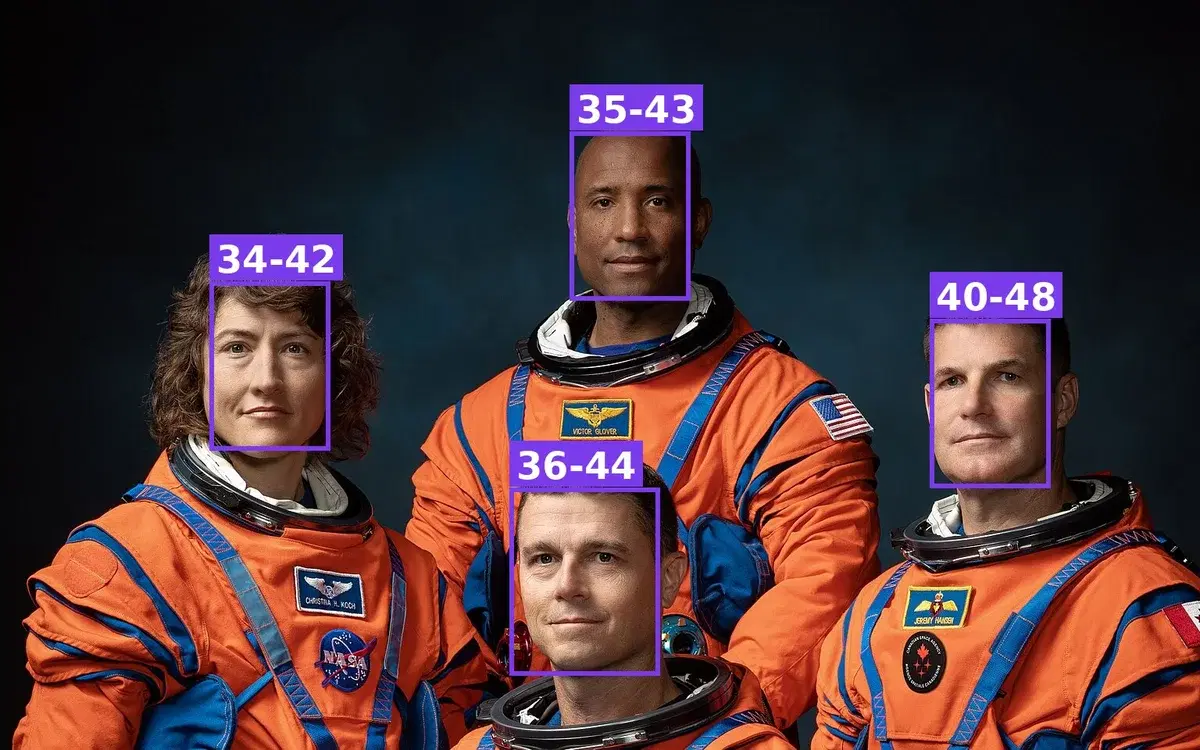
If you need the faces in reading order (left to right, as in a caption), the sort at the end of detect_ages already does it.
Batch a Folder and Bucket Ages for Analytics
A common use of age detection is aggregate statistics: the age mix of photos uploaded to a platform, of event attendees, or of faces in a media library. This script scans a folder, writes one CSV row per face, and counts faces per age bracket:
import csv
from collections import Counter
from pathlib import Path
from age_api import detect_ages

BRACKETS = [(0, 12, "0-12"), (13, 17, "13-17"), (18, 24, "18-24"),
            (25, 34, "25-34"), (35, 44, "35-44"), (45, 54, "45-54"),
            (55, 64, "55-64"), (65, 200, "65+")]


def bracket(age):
    for low, high, name in BRACKETS:
        if low <= age <= high:
            return name


def scan_folder(folder, csv_path):
    counts = Counter()
    with open(csv_path, "w", newline="") as f:
        writer = csv.writer(f)
        writer.writerow(["file", "face", "low", "high", "estimate", "bracket"])
        for path in sorted(Path(folder).glob("*.jpg")):
            for i, face in enumerate(detect_ages(path)):
                b = bracket(round(face["estimate"]))
                counts[b] += 1
                writer.writerow([path.name, i, face["low"], face["high"],
                                 face["estimate"], b])
    return counts


counts = scan_folder("photos", "ages.csv")
for name in [b[2] for b in BRACKETS]:
    print(f"{name:>6}: {counts[name]}")
On a folder with our four test photos (seven faces in total), it prints:
  0-12: 2
 13-17: 0
 18-24: 0
 25-34: 0
 35-44: 4
 45-54: 0
 55-64: 0
   65+: 1
And the CSV keeps the detail for each face:
file,face,low,high,estimate,bracket
addie.jpg,0,9,15,12.0,0-12
artemis.jpg,0,34,42,38.0,35-44
artemis.jpg,1,36,44,40.0,35-44
artemis.jpg,2,35,43,39.0,35-44
artemis.jpg,3,40,48,44.0,35-44
glenn.jpg,0,73,79,76.0,65+
luigi.jpg,0,6,12,9.0,0-12
For analytics, the midpoint is the right input: errors in both directions cancel out over many faces. Running the same photos twice returned the same numbers, so reports are reproducible.
Flag Possible Minors
For safety decisions, the midpoint is the wrong input. If a user might be under 18, you want to know, so use the Low value and add a buffer zone where you ask for more proof:
from age_api import detect_ages

ADULT_AGE = 18
BUFFER = 7  # treat anyone who might be under 25 as "check further"


def classify(path):
    faces = detect_ages(path)
    if not faces:
        return "no_face"
    youngest = min(f["low"] for f in faces)
    if youngest < ADULT_AGE:
        return "possible_minor"
    if youngest < ADULT_AGE + BUFFER:
        return "verify_id"
    return "adult"


for name in ["luigi.jpg", "addie.jpg", "glenn.jpg", "artemis.jpg", "noface.jpg"]:
print(name, classify(name))luigi.jpg possible_minor
addie.jpg possible_minor
glenn.jpg adult
artemis.jpg adult
noface.jpg no_faceThe rule looks at the youngest face in the photo, which is what you want for content moderation: one child in a group picture is enough to route it for review. The 25 threshold follows the "Challenge 25" logic used by retailers: people who look under 25 are asked for ID. For a complete age gate with a Flask endpoint, consent and data retention, see our face-based age verification tutorial. If you are choosing a provider for regulated age checks, our comparison of age verification APIs covers ID checks, liveness and what regulators accept.
Production Tips
- Upload the file when you can. The API also accepts a public image URL (send
urlas a form field instead ofimage), but some hosts block server-side downloads. Wikimedia Commons is one of them: a Commons image URL returned "Could not load image", while the same photo uploaded as a file worked. - Use ranges for decisions, midpoints for statistics. The API estimates apparent age, meaning how old a face looks. Studio lighting, makeup and retouching can make an adult look younger, which is another reason to decide on
Lowwith a buffer. - Give the face enough pixels. In the Luigi photo the face covers less than 10% of the image width, and the API still found it. For selfies and webcam captures, ask users to face the camera without sunglasses.
- Store the result, not the photo. If you only need the age bracket, save the numbers and delete the image. Age is personal data in many jurisdictions, so tell users what you process and why.
- Reuse the same call for other attributes. Gender, emotions, smile and glasses come back in the same response at no extra cost per request. Our face detection REST API guide covers the full response.
Next Step
Get a key on the Face Analyzer API page, save age_api.py, and run it on a few of your own photos to see the ranges you get.
Sources
- Lewis Hine, Luigi, 6 years old, newsboy, Sacramento, 1915 (Wikimedia Commons, public domain)
- Lewis Hine, Addie Card, 12 years old, North Pownal, Vermont, 1910 (National Gallery of Art, CC0)
- Astronaut U.S. Senator John Glenn, NASA portrait, 14 April 1998 (public domain)
- Artemis II crew portrait, NASA, 29 March 2023 (public domain)
Frequently Asked Questions
- What is an age detection API?
- An age detection API is a web service that looks at the faces in a photo and estimates how old each person is. The Face Analyzer API returns an AgeRange with a Low and a High value for every face it finds, plus the face position, so one request handles a selfie or a full group photo.
- Is age detection the same as age estimation or age prediction?
- In practice, yes. The three terms describe the same task: predicting a person's age from their face. Age verification is different: it is the decision you make with that estimate, such as letting a user in or asking for an ID document.
- How do I turn the age range into a single number?
- Take the midpoint, (Low + High) / 2. In our tests the midpoint matched the real age exactly for a 12 year old girl and for John Glenn at 76. For decisions about minors, use the Low value instead of the midpoint, because it is the cautious side of the estimate.
- Can the API estimate the age of several people in one photo?
- Yes. The response contains one entry per detected face, each with its own AgeRange and bounding box. On the four-person Artemis II crew portrait, the API returned four faces in about one second, and the script in this article draws each age range above the matching face.