This tutorial uses the Face Restoration API. See the docs, live demo, and pricing.
Old photographs fade, scratch, and lose detail over time, but the faces in them still carry irreplaceable memories. A face restoration API uses deep learning to reconstruct facial details that have been lost to age, compression, or low resolution — sharpening eyes, smoothing skin artifacts, and recovering natural textures that make a face look lifelike again. In this tutorial, you will learn how to integrate the Face Restoration API into your application with a single POST request, with complete code examples in cURL, Python, and JavaScript.
Why Use a Face Restoration API?
Building a face restoration model from scratch requires training on millions of degraded and high-quality face pairs, managing GPU infrastructure, and constantly tuning for edge cases like extreme blur or heavy noise. A hosted API abstracts all of that complexity. Here is what you get out of the box:
- AI-powered detail recovery with 2x upscale — The model reconstructs fine facial features like eyes, eyebrows, lips, and skin texture from heavily degraded inputs, and upscales the result to 2x resolution.
- No ML expertise required — You do not need to understand GANs, super-resolution architectures, or training pipelines. You send an image and get an enhanced version back.
- Single request, instant result — Send one POST request and get back a permanent CDN URL to the enhanced image. No polling or job management needed.
- Flexible input options — Upload an image file directly or pass a public URL. The API accepts common formats like JPEG, PNG, and WebP.
Getting Started with the Face Restoration API
The Face Restoration API uses a simple synchronous workflow. Send a POST request to /enhance-face with your image (as a file upload or a URL) and an optional mode parameter. The API returns a JSON response with a permanent CDN URL to the enhanced image, along with dimensions, file size, and the number of faces detected.
The mode parameter controls which faces to enhance:
- single (default) — enhances only the center/main face, best for portraits
- all — enhances every detected face, best for group photos
cURL
curl -X POST "https://face-restoration.p.rapidapi.com/enhance-face" \
  -H "x-rapidapi-key: YOUR_API_KEY" \
  -H "x-rapidapi-host: face-restoration.p.rapidapi.com" \
  -H "Content-Type: application/x-www-form-urlencoded" \
  -d "image_url=https://example.com/old_photo.jpg&mode=single"

# Response:
# {
#   "image_url": "https://images.ai-engine.net/face-restoration-api/abc123.jpg",
#   "width": 2048,
#   "height": 2048,
#   "size_bytes": 160640,
#   "faces_detected": 1
# }
Python
import requests

response = requests.post(
    "https://face-restoration.p.rapidapi.com/enhance-face",
    headers={
        "x-rapidapi-host": "face-restoration.p.rapidapi.com",
        "x-rapidapi-key": "YOUR_API_KEY",
    },
    data={
        "image_url": "https://example.com/old_photo.jpg",
        "mode": "single",
    },
)

data = response.json()
print(data["image_url"])      # Permanent CDN URL
print(data["faces_detected"]) # Number of faces enhanced
JavaScript (fetch)
const response = await fetch(
  "https://face-restoration.p.rapidapi.com/enhance-face",
  {
    method: "POST",
    headers: {
      "x-rapidapi-host": "face-restoration.p.rapidapi.com",
      "x-rapidapi-key": "YOUR_API_KEY",
      "Content-Type": "application/x-www-form-urlencoded",
    },
    body: "image_url=https://example.com/old_photo.jpg&mode=single",
  }
);

const data = await response.json();
console.log(data.image_url);      // Permanent CDN URL
console.log(data.faces_detected); // Number of faces enhanced
See the Results
The image below shows the Face Restoration API in action. A degraded, low-quality face has been reconstructed with sharper details, clearer eyes, and smoother skin textures — all without manual retouching.
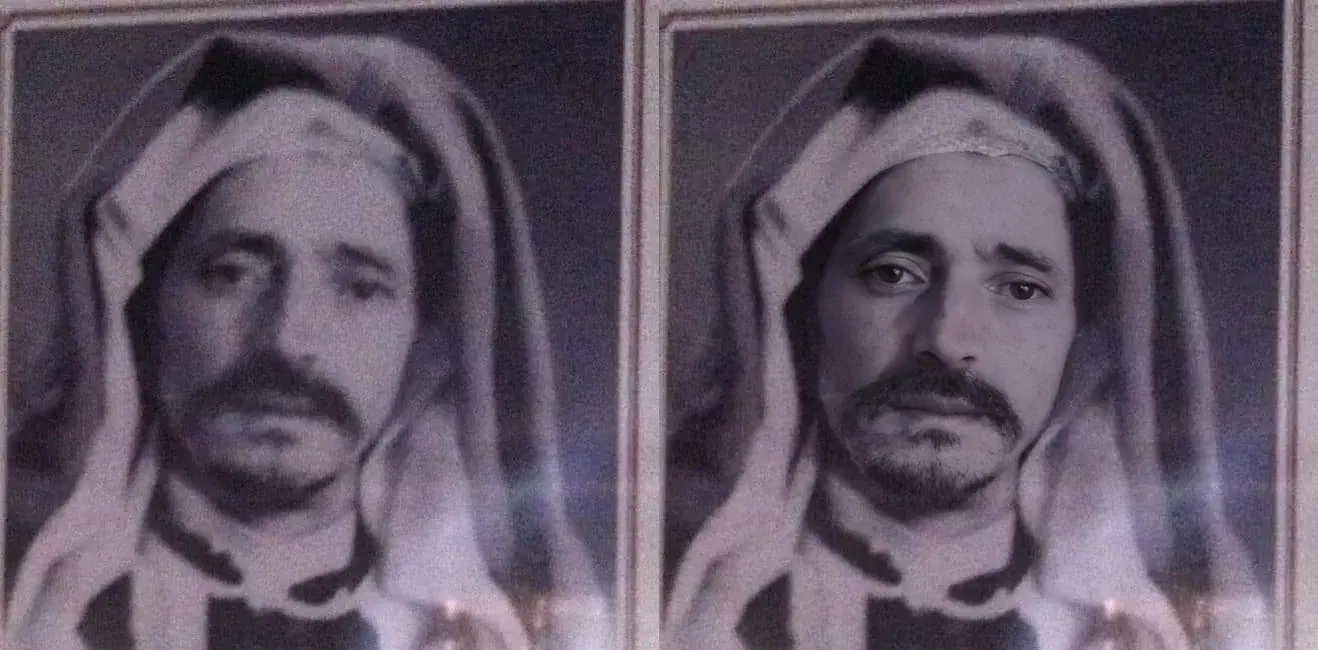
The model is particularly effective on portraits where the face occupies a significant portion of the frame. It recovers details like individual eyelashes, skin pores, and lip texture that were completely lost in the degraded input. The result looks natural rather than over-sharpened, which is a common problem with simpler upscaling approaches.
Real-World Use Cases
Face restoration is not just a technical demo. It solves real problems for real users across multiple industries. Here are four scenarios where the API delivers immediate value.
Old Family Photos
This is the most emotionally resonant use case. Millions of family photographs from the pre-digital era are fading in shoeboxes and albums. When these photos are scanned, the resulting digital files often suffer from low resolution, scratches, and faded tones. The Face Restoration API can recover facial details that the scanner could not capture, turning a blurry ancestor portrait into a sharp, lifelike image that families can treasure.
Profile Picture Enhancement
Not every profile picture starts as a high-quality studio portrait. Many users crop their face from a group photo, use an old webcam shot, or grab a frame from a video call. Running these images through the Face Restoration API produces a noticeably sharper result that looks polished without requiring the user to take a new photo.
Historical Archive Digitization
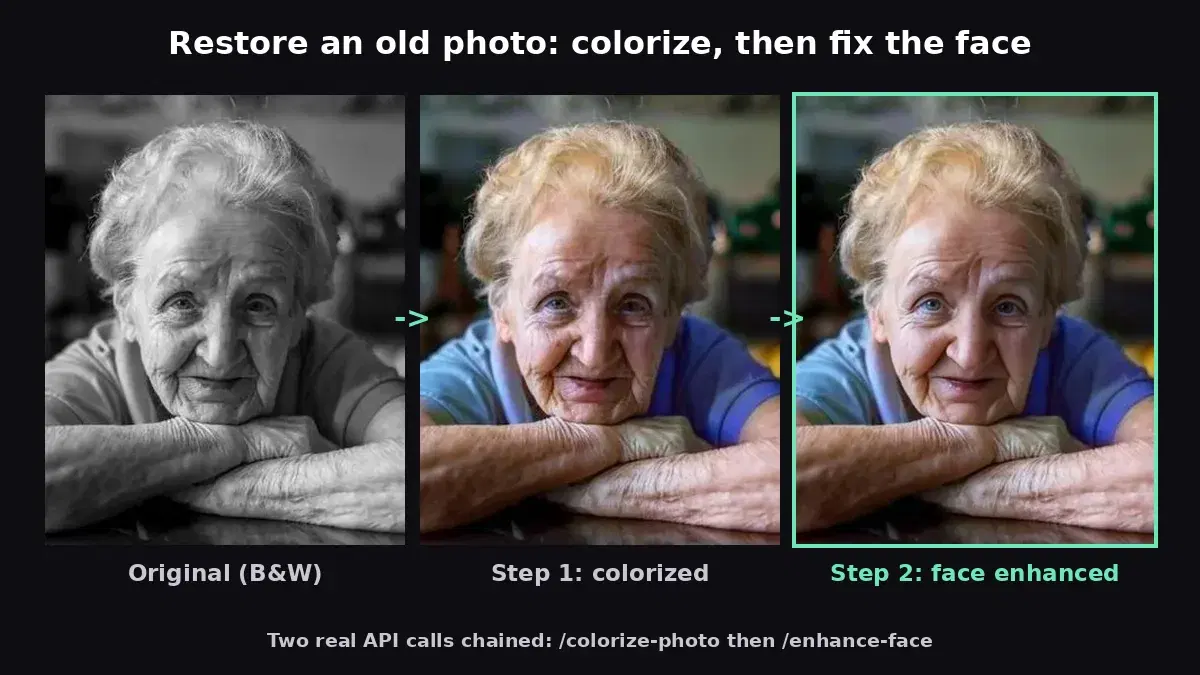
Museums, libraries, and government archives hold massive collections of historical photographs where faces are often the most important element. The API can process entire collections programmatically, restoring thousands of faces in hours rather than weeks of manual retouching. Pair this with AI colorization to bring historical black-and-white photographs to life.
Real Estate and ID Photos
Identity verification workflows may receive low-quality scans of passports or driver's licenses where the photo is barely legible. The Face Restoration API can enhance the face region enough to improve usability — helping an agent verify a document without requesting a rescan.
Tips and Best Practices
Start with the Best Available Input
The restoration model can recover a remarkable amount of detail, but it is not magic. If you have access to the original print, scan it at 300 DPI or higher before sending it to the API. A higher-quality input gives the model more information to work with and produces a more natural result.
Choose the Right Mode
Use mode=single (the default) for portrait photos with one main subject — it is faster and more focused. Use mode=all for group photos where every face needs enhancement.
Combine with Other Enhancement Steps
Face restoration works best as part of a pipeline. Consider following up with AI colorization if the original was black and white. Each step builds on the previous one, and the cumulative result is far better than any single step alone.
Old photographs deserve better than a dusty shoebox. The Face Restoration API gives you the tools to bring faded faces back to life with a single API call. Grab your API key and start restoring.
Frequently Asked Questions
- What is a face restoration API?
- A face restoration API enhances degraded faces in photos using AI. It repairs damage like scratches, blur, low resolution, and color fading. You upload the old or damaged photo and the API returns an enhanced version with sharper facial features, better skin detail, and corrected colors.
- Can AI restore severely damaged old photos?
- AI face restoration works best on photos where the face is still partially visible. It can fix blur, noise, scratches, and fading effectively. For severely damaged photos where large portions of the face are missing or obscured, results may be less accurate since the AI has to hallucinate missing details.
- Does face restoration work on group photos?
- Yes. The API detects and enhances each face in the image individually. In group photos, all visible faces are restored. However, very small faces (those occupying a tiny portion of the image) may see less improvement — cropping to focus on specific faces can help.