This tutorial uses the Face Analyzer API. See the docs, live demo, and pricing.
Traditional access control relies on badges, PINs, or passwords - all of which can be lost, forgotten, or shared. A face-based access control system eliminates these problems by verifying identity through facial recognition. With a face comparison API, you can build a system that enrolls authorized users, stores their facial features, and verifies anyone attempting access - all through simple REST calls. In this tutorial you will build a complete face-based access system using the Face Analyzer API, which provides face comparison, facial repositories, and face search endpoints.
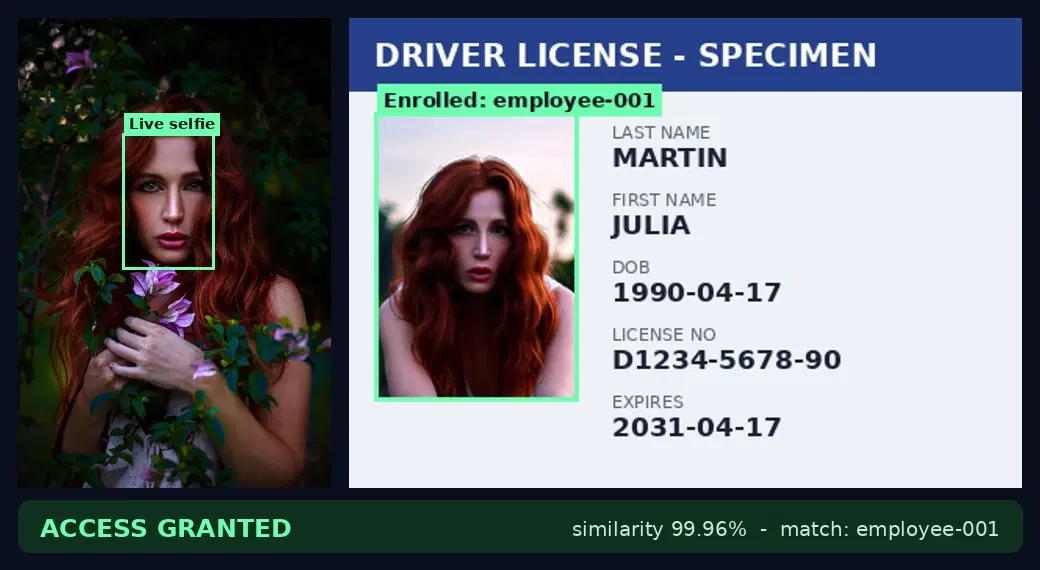
external_id and a 99.96% similarity score, so access is granted.System Architecture
A face-based access control system follows three core steps. Understanding this flow is essential before writing any code.
- Enrollment: An administrator registers authorized users by uploading their photo. The API extracts facial features and stores them in a repository linked to the user's identity.
- Storage: Facial features are stored in a cloud-based repository managed by the API. You create named repositories, add faces with external IDs (like employee IDs), and manage entries over time.
- Verification: When someone requests access, the system captures their photo and searches the repository for a match. If a match is found above a similarity threshold, access is granted.
The Face Analyzer API handles all the heavy lifting - feature extraction, storage, and matching. Your application only needs to orchestrate the API calls and make access decisions based on the results.
Quick Comparison: Two Approaches
The API offers two ways to verify faces. Choose the one that fits your use case.
- Direct face comparison (
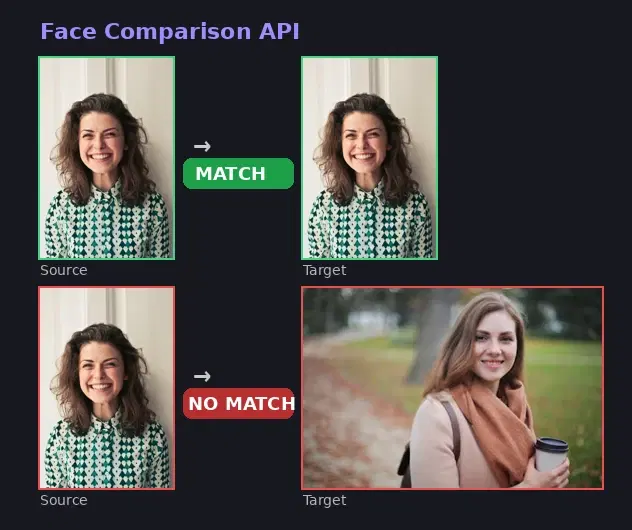
/compare-faces): Compares a source image against a target image directly. Best for one-to-one verification where you already have both images, such as comparing a selfie against an ID photo. - Repository-based search (
/search-face-in-repository) - Searches a face against an entire database of enrolled faces. Best for one-to-many identification where you need to find who someone is among many authorized users.
For an access control system with multiple users, the repository-based approach is the right choice. Let's build it step by step.
Step 1: Create a Facial Repository
First, create a repository to store your authorized users' facial features. Think of it as a secure database dedicated to face data.
cURL
curl -X POST \
  'https://faceanalyzer-ai.p.rapidapi.com/create-facial-repository' \
  -H 'x-rapidapi-host: faceanalyzer-ai.p.rapidapi.com' \
  -H 'x-rapidapi-key: YOUR_API_KEY' \
  -H 'Content-Type: application/x-www-form-urlencoded' \
  -d 'repository_id=office-access'
Python
import requests

BASE = "https://faceanalyzer-ai.p.rapidapi.com"
HEADERS = {
    "x-rapidapi-host": "faceanalyzer-ai.p.rapidapi.com",
    "x-rapidapi-key": "YOUR_API_KEY",
}

# Create repository
response = requests.post(
    f"{BASE}/create-facial-repository",
    headers={**HEADERS, "Content-Type": "application/x-www-form-urlencoded"},
    data={"repository_id": "office-access"},
)
print(response.json())
# {"statusCode": 200, "body": {"message": "OK"}}
JavaScript
const BASE = "https://faceanalyzer-ai.p.rapidapi.com";
const HEADERS = {
  "x-rapidapi-host": "faceanalyzer-ai.p.rapidapi.com",
  "x-rapidapi-key": "YOUR_API_KEY",
};

const response = await fetch(`${BASE}/create-facial-repository`, {
  method: "POST",
  headers: { ...HEADERS, "Content-Type": "application/x-www-form-urlencoded" },
  body: new URLSearchParams({ repository_id: "office-access" }),
});
console.log(await response.json());
// {"statusCode": 200, "body": {"message": "OK"}}
Step 2: Enroll Authorized Users
For each authorized user, upload a clear photo of their face along with an external identifier (such as an employee ID or username). The API extracts facial features and stores them in the repository.
Python
# Enroll a user by uploading their photo
with open("employee_alice.jpg", "rb") as f:
    response = requests.post(
        f"{BASE}/save-face-in-repository",
        headers=HEADERS,
        files={"image": ("alice.jpg", f, "image/jpeg")},
        data={
            "repository_id": "office-access",
            "external_id": "alice-johnson",
            "max_faces": "1",
        },
    )

print(response.json())
# {"statusCode": 200, "body": {"FacesId": ["96d7f408-76a4-45cd-91a3-17ba798e8111"]}}

# Enroll more users
for name, photo in [("bob-smith", "bob.jpg"), ("carol-lee", "carol.jpg")]:
    with open(photo, "rb") as f:
        requests.post(
            f"{BASE}/save-face-in-repository",
            headers=HEADERS,
            files={"image": (photo, f, "image/jpeg")},
            data={
                "repository_id": "office-access",
                "external_id": name,
                "max_faces": "1",
            },
        )
JavaScript
// Enroll a user from a file input
const formData = new FormData();
formData.append("image", fileInput.files[0]);
formData.append("repository_id", "office-access");
formData.append("external_id", "alice-johnson");
formData.append("max_faces", "1");

const response = await fetch(`${BASE}/save-face-in-repository`, {
  method: "POST",
  headers: HEADERS,
  body: formData,
});
console.log(await response.json());
// {"statusCode": 200, "body": {"FacesId": ["96d7f408-76a4-45cd-91a3-17ba798e8111"]}}
Step 3: Verify Access
When someone requests access, capture their photo (from a webcam, kiosk camera, or mobile device) and search the repository for a match. The API returns matching faces with a similarity score.
Python
# Verify a person requesting access
with open("access_attempt.jpg", "rb") as f:
    response = requests.post(
        f"{BASE}/search-face-in-repository",
        headers=HEADERS,
        files={"image": ("attempt.jpg", f, "image/jpeg")},
        data={"repository_id": "office-access"},
    )

result = response.json()["body"]
SIMILARITY_THRESHOLD = 85

if result.get("FaceMatches"):
    best_match = result["FaceMatches"][0]
    similarity = best_match["Similarity"]            # 0 to 100
    person_id = best_match["ExternalImageId"]         # the id you enrolled

    if similarity >= SIMILARITY_THRESHOLD:
        print(f"ACCESS GRANTED - {person_id} (similarity: {similarity}%)")
    else:
        print(f"ACCESS DENIED - low confidence ({similarity}%)")
else:
    print("ACCESS DENIED - face not recognized")
JavaScript
const SIMILARITY_THRESHOLD = 85;

const formData = new FormData();
formData.append("image", webcamBlob); // from camera capture
formData.append("repository_id", "office-access");

const response = await fetch(`${BASE}/search-face-in-repository`, {
  method: "POST",
  headers: HEADERS,
  body: formData,
});

const result = (await response.json()).body;

if (result.FaceMatches?.length > 0) {
  const { Similarity, ExternalImageId } = result.FaceMatches[0];
  if (Similarity >= SIMILARITY_THRESHOLD) {
    console.log(`ACCESS GRANTED - ${ExternalImageId} (${Similarity}%)`);
  } else {
    console.log(`ACCESS DENIED - low confidence (${Similarity}%)`);
  }
} else {
  console.log("ACCESS DENIED - face not recognized");
}
Every Face Analyzer response is wrapped in a body object, so the search result lives at response["body"]. Each entry in FaceMatches carries the Similarity (0 to 100), the ExternalImageId you enrolled the face with, its FaceId, and a BoundingBox locating the matched face; the response also returns a SearchedFaceBoundingBox for the queried photo. Read the top match and compare its similarity to your threshold.
Direct Face Comparison
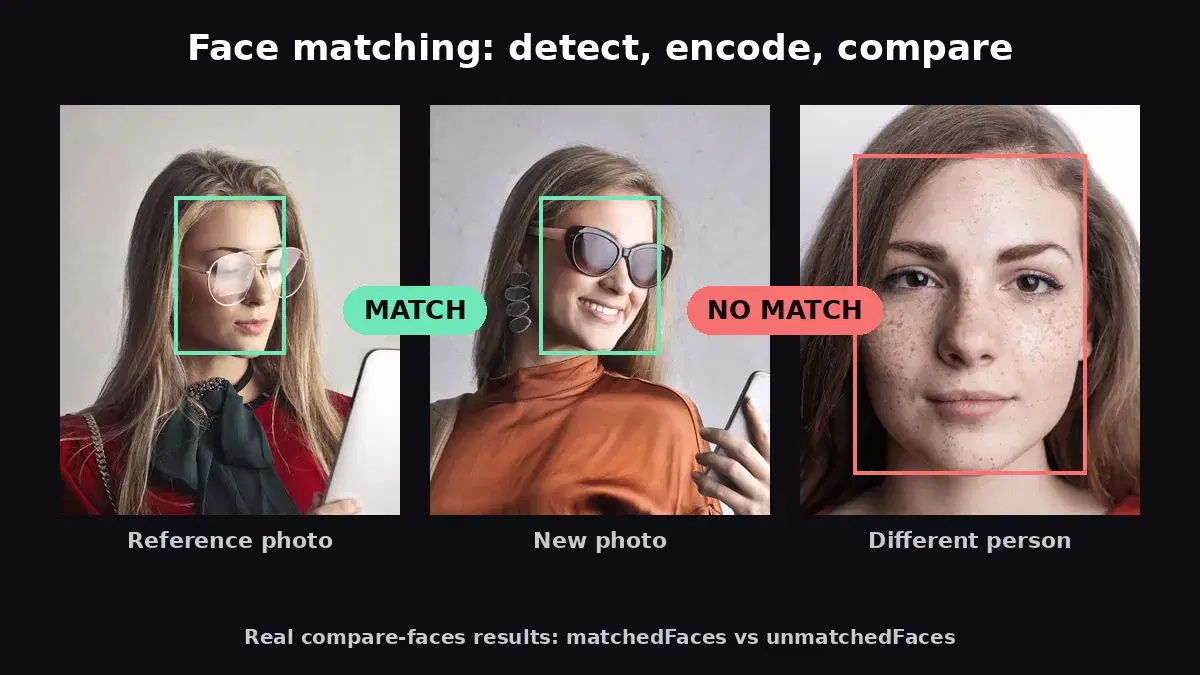
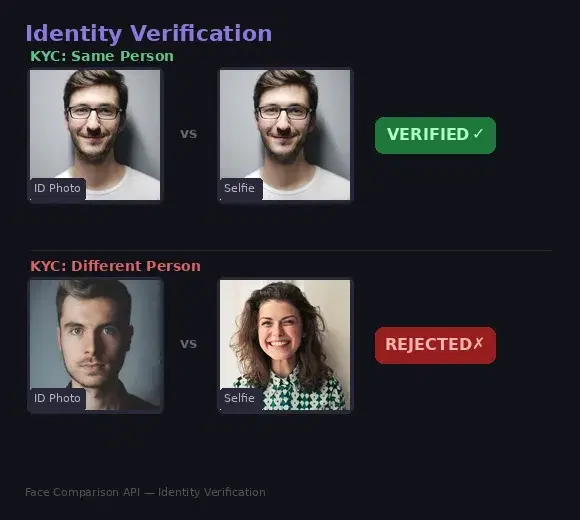
For simpler scenarios like comparing a selfie against an ID photo (one-to-one verification), use the /compare-faces endpoint directly without managing a repository.
# Compare a selfie against an ID photo
with open("selfie.jpg", "rb") as src, open("id_photo.jpg", "rb") as tgt:
    response = requests.post(
        f"{BASE}/compare-faces",
        headers=HEADERS,
        files={"source_image": src, "target_image": tgt},
    )

result = response.json()
matched = result["body"]["matchedFaces"]
unmatched = result["body"]["unmatchedFaces"]

if matched:
    print(f"MATCH - faces are the same person")
else:
    print(f"NO MATCH - faces do not match ({len(unmatched)} unmatched)")
Managing Your Repository
Over time you will need to add new users, remove former employees, and audit who is enrolled. Here are the management operations.
List All Enrolled Faces
# List all faces in the repository
response = requests.get(
    f"{BASE}/list-repository-faces",
    headers=HEADERS,
    params={"repository_id": "office-access"},
)

for face in response.json()["body"]["Faces"]:
    print(f"  ID: {face['FaceId']} - {face['ExternalImageId']}")
Remove a User
# Remove a user who no longer needs access
response = requests.post(
    f"{BASE}/delete-face-from-repository",
    headers={**HEADERS, "Content-Type": "application/x-www-form-urlencoded"},
    data={
        "repository_id": "office-access",
        "face_ids": '["face-id-abc123"]',
    },
)
print(response.json())  # {"statusCode": 200, "body": {"message": "OK"}}
Real-World Use Cases
Office and Building Access
Replace badge readers with cameras at entry points. Employees walk up, the system captures their face, searches the repository, and unlocks the door if a match is found. No badges to forget, no PINs to share. The system can also log entry times with the matched identity for audit purposes. For additional security, combine face verification with the face detection API to ensure the captured image contains exactly one real face before proceeding.
Event Check-In
Conferences and venues can use face enrollment during registration and face search at the entrance for contactless check-in. Attendees upload a selfie when they register online, and on event day they simply walk up to a camera. The system matches their face to their registration and prints their badge automatically.
Identity Verification for Financial Services
Banks and fintech apps use face comparison to verify that the person opening an account matches the photo on their government-issued ID. The /compare-faces endpoint handles this directly - upload the ID photo as the source and the live selfie as the target. This replaces in-person identity checks with a fully digital, instant verification flow.
Exam Proctoring
Online exam platforms can verify that the person taking the test matches the enrolled student. Capture a photo at the start of the exam, compare it against the student's enrollment photo, and flag any mismatches for review. Periodic rechecks during the exam add another layer of integrity assurance.
Best Practices
Set the Right Similarity Threshold
Use 85% for most access control, 90%+ for high security, 75-80% for low-stakes areas. The score from /search-face-in-repository runs 0 to 100. 85 balances security and convenience; raise it for server rooms and vaults, lower it for gym check-in or coworking spaces to cut false rejections.
Enroll with High-Quality Photos
Enroll well-lit, front-facing photos where the face fills much of the frame. Avoid heavy shadows, sunglasses, and extreme angles. Where you can, enroll several photos per user from slightly different angles to make matches more resilient.
Handle Edge Cases
Always give a fallback when recognition fails. Handle no-match and low-confidence results gracefully, and keep a PIN, badge, or manual override for lighting changes, facial hair, and similar factors. Log every access attempt, successful or not, for security auditing.
Add a Liveness Check for Anything High-Security
A face match proves identity, not that the camera sees a live person. A printed photo, a phone screen, or a mask can pass a pure comparison. For doors, payments, or anything worth spoofing, pair the match with a liveness step: a blink or head-turn challenge, a depth/IR camera, or a dedicated liveness provider. Treat comparison as the identity layer and liveness as the anti-spoofing layer; you want both before trusting an unattended check.
Respect Privacy and Compliance
Get explicit consent before enrolling a face, and let users delete it. Biometric data falls under GDPR, CCPA, and local privacy laws. Expose deletion through the /delete-face-from-repository endpoint, document your retention policy, and audit enrolled faces regularly to remove outdated entries.
Face-based access control combines the convenience of hands-free authentication with the security of biometric verification. The Face Analyzer API gives you all the building blocks - face comparison, repository management, and face search - through simple REST endpoints. Start with a small pilot (a single door or check-in point), validate the accuracy in your environment, and scale from there.
Frequently Asked Questions
- How does face-based access control work?
- Users enroll by submitting a reference photo. When they request access, they provide a new photo (selfie or camera capture). The face comparison API compares the two images and returns a similarity score. If the score exceeds your threshold, access is granted. The entire check takes under one second.
- Is facial recognition accurate enough for access control?
- Yes. Modern face comparison APIs achieve over 99% accuracy on standard benchmarks. For security-critical applications, set a higher similarity threshold (e.g., 0.85 instead of 0.70) to reduce false positives. Combine with other factors like badge or PIN for multi-factor authentication.
- What happens if the face comparison fails?
- If the similarity score falls below your threshold, access is denied and the system can trigger a fallback - such as manual review, a secondary authentication method, or an alert to security staff. Log all failed attempts for audit purposes.