This tutorial uses the OCR Wizard API. See the docs, live demo, and pricing.
A large part of every law firm archive is pictures of paper: old case files, signed agreements, discovery productions and court records scanned years ago. They open fine, but Ctrl+F finds nothing, and nobody can search a whole matter for one phrase. This tutorial shows how to make scanned legal PDFs searchable in Python with the OCR Wizard API, in two ways: a searchable copy of each PDF that works in any viewer, and a full-text index that searches every page of the case file at once.
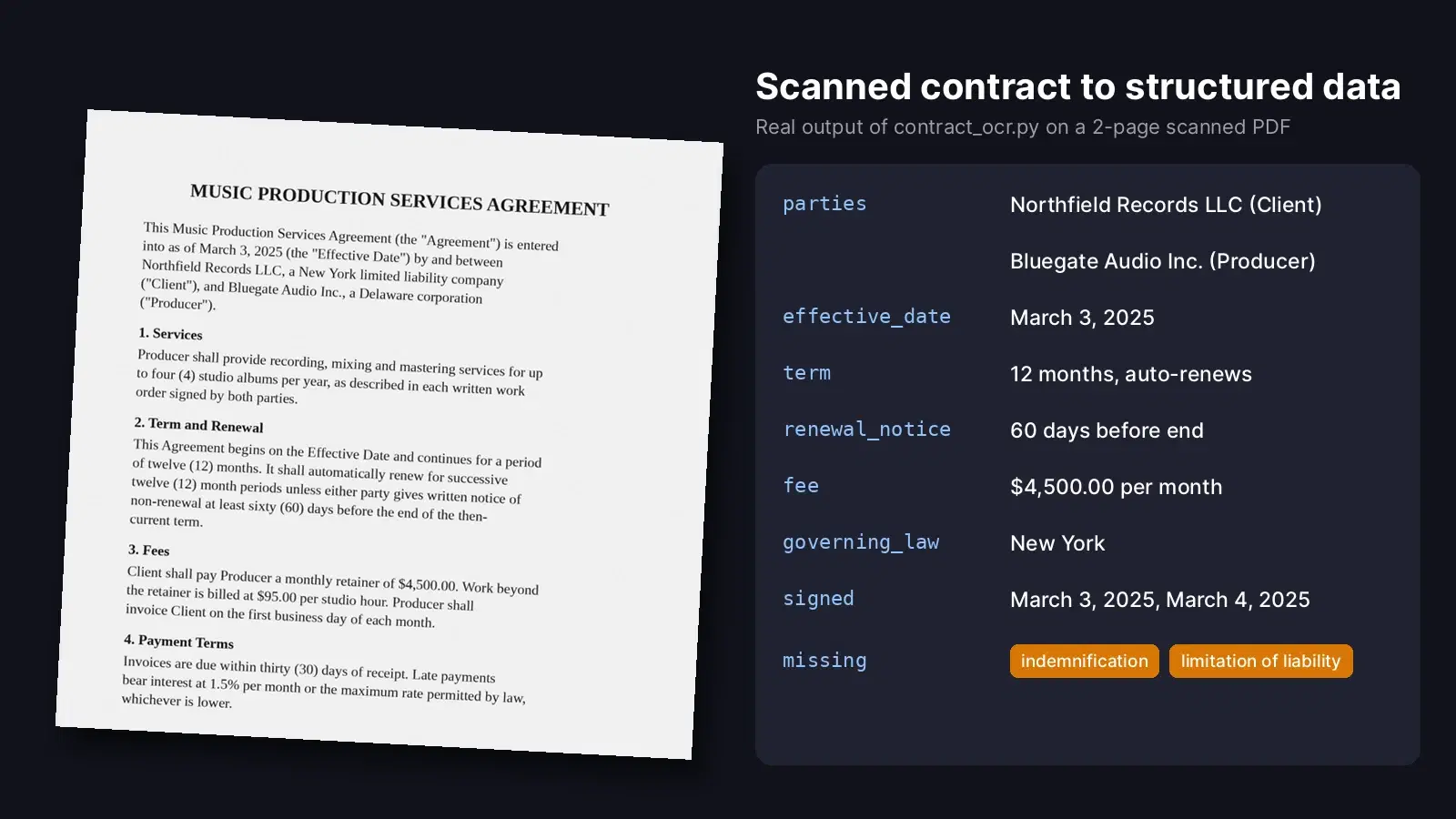
We tested everything on a real scanned document: the 1890 opinion of the Supreme Court of California in Colton v. Stanford, 62 pages, in the public domain. We added two modern documents written for this tutorial, a settlement agreement and a research memo, printed and scanned. The names in them are fictional and no client document was used.
What You Need
Python 3, a RapidAPI key saved in the RAPIDAPI_KEY environment variable, and two packages: requests for the API and pymupdf to write the text layer. SQLite ships with Python.
pip install requests pymupdf
export RAPIDAPI_KEY=your_key

casefile/
  colton-v-stanford.pdf           62 pages, scanned 1890 opinion
  research-memo-2025-02.pdf        1 page
  settlement-agreement-2025.pdf    2 pages
Step 1: OCR Every Page of the Case File
The /ocr-pdf endpoint reads up to 10 pages per request, set with first_page and last_page. Save this as ocr_case_file.py. It counts the pages, sends them in windows of 10 and keeps the result in a JSON file next to each PDF, so every page is read only once:
import json
import os
import sys
from pathlib import Path

import pymupdf
import requests

API_URL = "https://ocr-wizard.p.rapidapi.com/ocr-pdf"
HEADERS = {
    "x-rapidapi-key": os.environ["RAPIDAPI_KEY"],
    "x-rapidapi-host": "ocr-wizard.p.rapidapi.com",
}
CHUNK = 10  # pages per request


def ocr_pdf(path):
    """OCR every page of a scanned PDF, 10 pages per request."""
    page_count = pymupdf.open(path).page_count
    pages = []
    for first in range(1, page_count + 1, CHUNK):
        last = min(first + CHUNK - 1, page_count)
        with open(path, "rb") as f:
            r = requests.post(
                API_URL,
                headers=HEADERS,
                files={"pdf_file": f},
                data={"first_page": first, "last_page": last},
                timeout=180,
            )
        r.raise_for_status()
        pages += r.json()["body"]["pages"]
        print(f"  {path.name}: pages {first}-{last} done")
    return pages


def ocr_cached(path):
    """OCR a PDF once and keep the result next to it."""
    cache = path.with_suffix(".ocr.json")
    if cache.exists():
        return json.loads(cache.read_text())
    pages = ocr_pdf(path)
    cache.write_text(json.dumps(pages))
    return pages


if __name__ == "__main__":
    for pdf in sorted(Path(sys.argv[1]).glob("*.pdf")):
        if pdf.stem.endswith("-searchable"):
            continue
        pages = ocr_cached(pdf)
        words = sum(len(p["fullText"].split()) for p in pages)
print(f"{pdf.name}: {len(pages)} pages, {words} words")$ python ocr_case_file.py casefile
colton-v-stanford.pdf: pages 1-10 done
...
colton-v-stanford.pdf: pages 61-62 done
colton-v-stanford.pdf: 62 pages, 18045 words
research-memo-2025-02.pdf: pages 1-1 done
research-memo-2025-02.pdf: 1 pages, 232 words
settlement-agreement-2025.pdf: pages 1-2 done
settlement-agreement-2025.pdf: 2 pages, 396 wordsThe 62 pages of the opinion took 49 seconds, under a second per page. Each page in the response has fullText, the detected language, imageSize (the width and height in pixels of the page the API read) and annotations, one entry per word with its boundingPoly:
{
  "fullText": "-2-\nbound by any fiduciary relation to counsel, advise and pro-\ntect the plaintiff, ...",
  "detectedLanguage": "en",
  "imageSize": [705, 1267],
  "annotations": [
    {
      "text": "bound",
      "boundingPoly": [
        {"x": 68, "y": 155}, {"x": 127, "y": 155},
        {"x": 127, "y": 175}, {"x": 68, "y": 175}
      ]
    }
  ]
}
The word positions are what make the next step possible.
Step 2: Add a Hidden Text Layer to Each PDF
A searchable PDF is the same scan with invisible text placed exactly over each printed word. PDF viewers search and select that text, but draw only the image. Save this as make_searchable.py:
import sys
from pathlib import Path

import pymupdf

from ocr_case_file import ocr_cached

FONT = pymupdf.Font("helv")


def add_text_layer(pdf_path):
    """Write an invisible OCR text layer over every scanned page."""
    pages = ocr_cached(pdf_path)
    doc = pymupdf.open(pdf_path)
    for page, ocr in zip(doc, pages):
        scale = page.rect.width / ocr["imageSize"][0]  # [width, height] in pixels
        writer = pymupdf.TextWriter(page.rect)
        for word in ocr["annotations"]:
            xs = [p["x"] * scale for p in word["boundingPoly"]]
            ys = [p["y"] * scale for p in word["boundingPoly"]]
            width, height = max(xs) - min(xs), max(ys) - min(ys)
            if width <= 0 or height <= 0:
                continue
            # font size that makes the word as wide as it is on the scan
            size = min(height, width / FONT.text_length(word["text"], fontsize=1))
            writer.append((min(xs), max(ys) - height * 0.2), word["text"], font=FONT, fontsize=size)
        writer.write_text(page, render_mode=3)  # 3 = invisible, still searchable
    out = pdf_path.with_name(pdf_path.stem + "-searchable.pdf")
    doc.save(out, garbage=3, deflate=True)
    return out


if __name__ == "__main__":
    out = add_text_layer(Path(sys.argv[1]))
    term = sys.argv[2]
    pages = [p.number + 1 for p in pymupdf.open(out) if p.search_for(term)]
print(f"{out.name}: '{term}' on pages {pages}")$ python make_searchable.py casefile/colton-v-stanford.pdf "cestui que trust"
colton-v-stanford-searchable.pdf: 'cestui que trust' on pages [9, 10, 11, 16, 19, 20, 21, 24, 26, 32, 33, 38, 39]Three details make it work. The scale converts API pixels to PDF points, using the imageSize of each page. The font size is chosen so each invisible word is as wide as the printed one, which keeps selection and highlights on the right word. And render_mode=3 writes text that is never drawn. Adding the layer to the 62 pages took 2.9 seconds, and the file went from 2.9 MB to 3.2 MB.
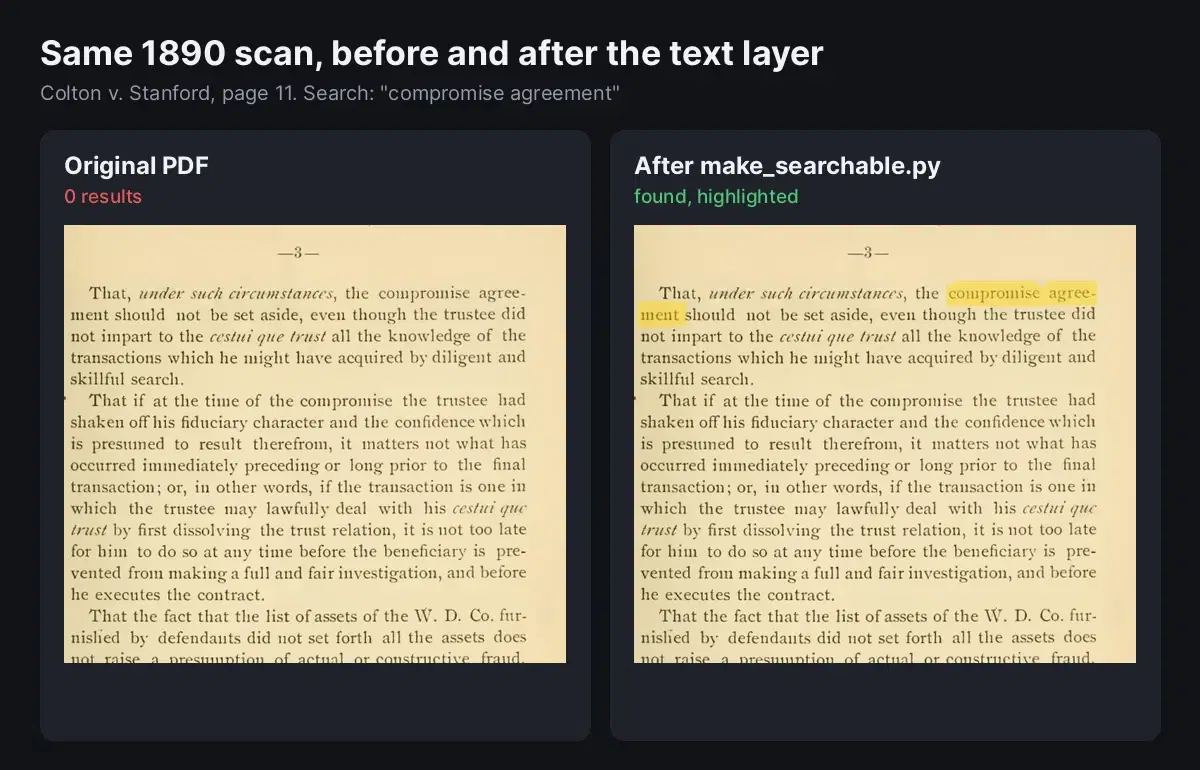
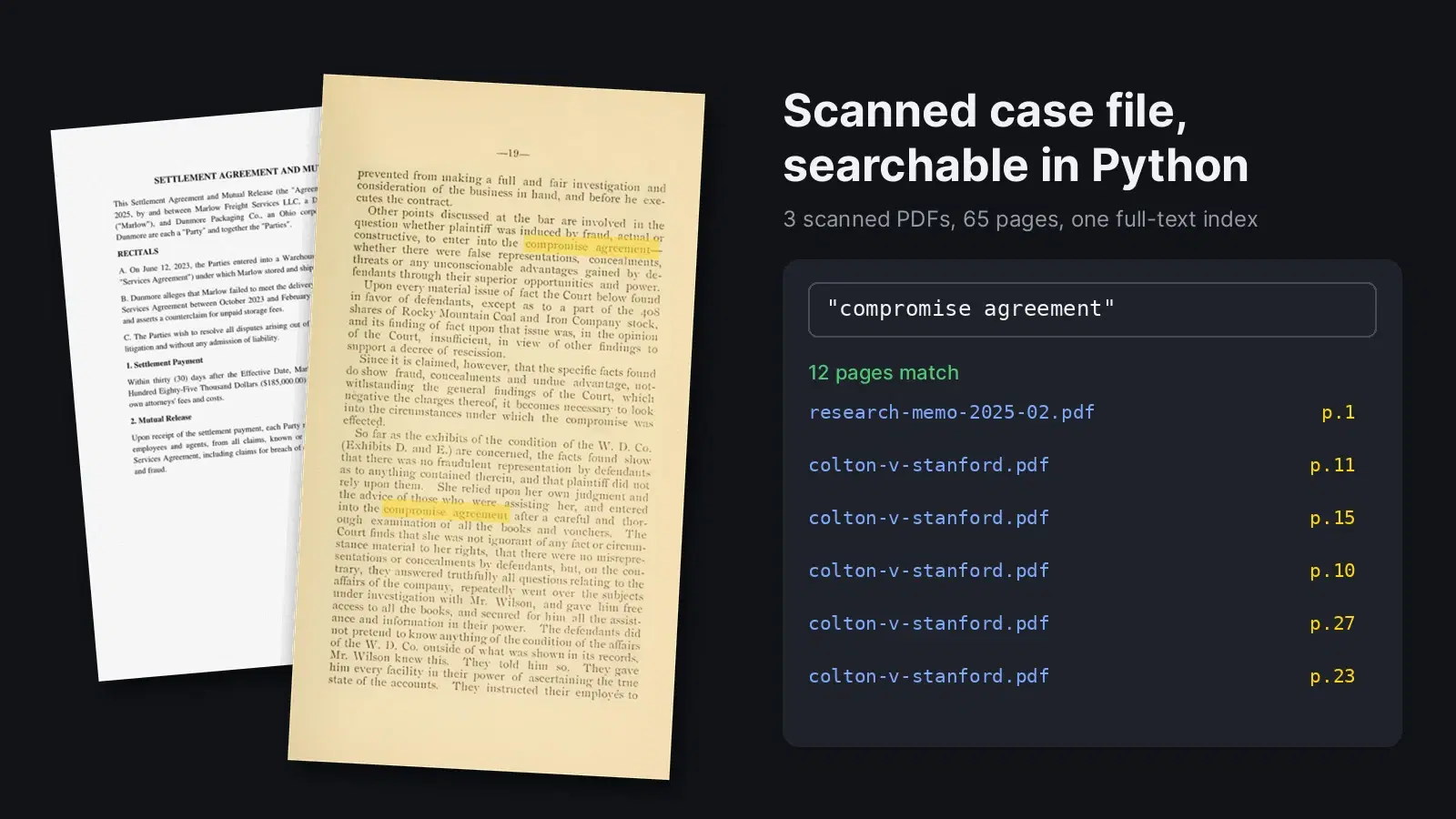
The phrase on this page is printed as compromise agree- at the end of one line and ment at the start of the next, and the viewer still finds it. The copy is a normal PDF: you can open it in any viewer, file it in your document management system, or copy a quote from it into a brief.
Step 3: Index the Whole Case File in SQLite
A searchable PDF answers "where is this phrase in this file?". A case file needs "which documents and pages mention it?". SQLite has a full-text search engine, FTS5, built in. Save this as index_case_file.py. It stores one row per page, with the file name and page number:
import re
import sqlite3
import sys
from pathlib import Path

from ocr_case_file import ocr_cached


def clean(text):
    # join words split across lines: "pro-\ntect" -> "protect"
    text = re.sub(r"(\w)-\n(\w)", r"\1\2", text)
    return text.replace("\n", " ")


def build_index(folder, db_path="case_index.db"):
    db = sqlite3.connect(db_path)
    db.execute("DROP TABLE IF EXISTS pages")
    db.execute(
        "CREATE VIRTUAL TABLE pages USING fts5("
        "file, page UNINDEXED, text, tokenize='porter unicode61')"
    )
    for pdf in sorted(Path(folder).glob("*.pdf")):
        if pdf.stem.endswith("-searchable"):
            continue
        for number, page in enumerate(ocr_cached(pdf), start=1):
            db.execute(
                "INSERT INTO pages VALUES (?, ?, ?)",
                (pdf.name, number, clean(page["fullText"])),
            )
    db.commit()
    return db


if __name__ == "__main__":
    db = build_index(sys.argv[1])
    files, pages = db.execute("SELECT count(DISTINCT file), count(*) FROM pages").fetchone()
print(f"indexed {pages} pages from {files} files")$ python index_case_file.py casefile
indexed 65 pages from 3 filesIndexing the 65 pages takes 0.3 seconds, because it reads the cached JSON and does not call the API again. The porter tokenizer matches word forms, so a search for release also finds released and releases.
The clean function matters more than it looks. Printed opinions and briefs split long words across lines with a hyphen, and the 62-page opinion has 356 of them. Indexed as raw text, pro- and tect are two words and a search for protect misses the page. Here is what the join changes on the opinion alone:
| Search | Pages found, raw text | Pages found, after the join |
|---|---|---|
investigation | 15 | 17 |
transaction | 13 | 16 |
"compromise agreement" | 10 | 11 |
protect | 1 | 2 |
Step 4: Search Across Every Document
Save this as search_case_file.py. It returns the best matching pages first, with a short snippet where the matched words are in brackets:
import sqlite3
import sys


def search(query, db_path="case_index.db", limit=5):
    db = sqlite3.connect(db_path)
    return db.execute(
        "SELECT file, page, snippet(pages, 2, '[', ']', '...', 12) "
        "FROM pages WHERE pages MATCH ? ORDER BY rank LIMIT ?",
        (query, limit),
    ).fetchall()


if __name__ == "__main__":
    query = sys.argv[1]
    print(f"> {query}")
    for file, page, snippet in search(query):
print(f" {file} p.{page}: {snippet}")$ python search_case_file.py '"compromise agreement"'
> "compromise agreement"
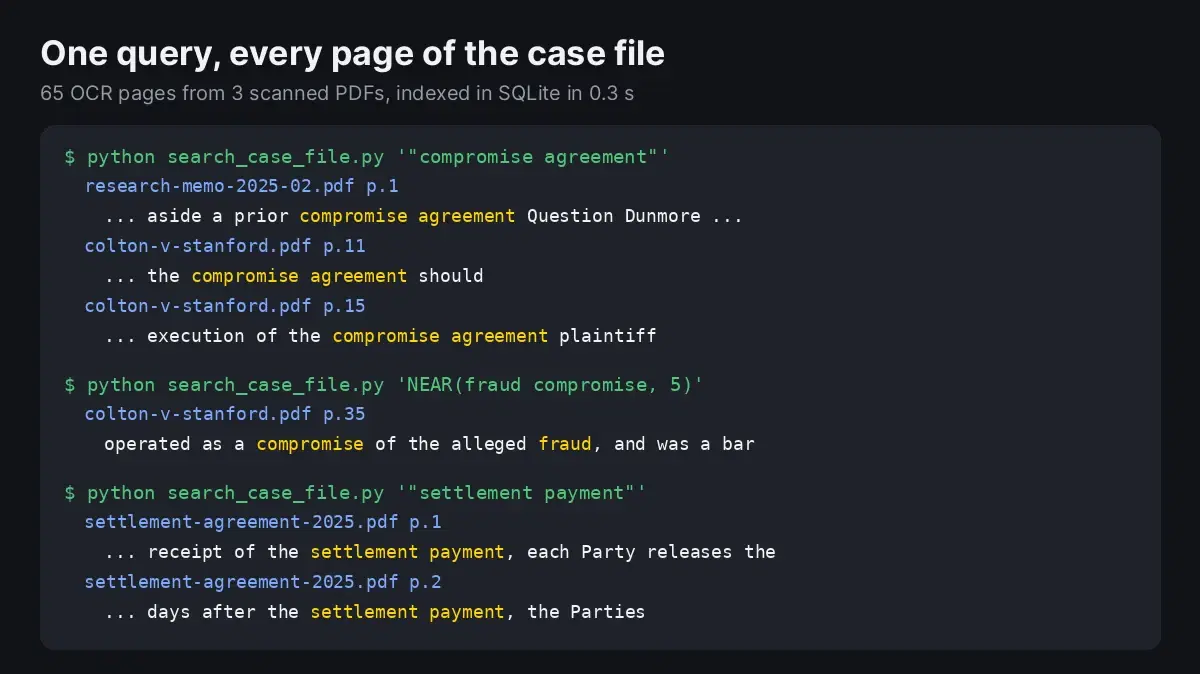
research-memo-2025-02.pdf p.1: ...Marlow, setting aside a prior [compromise agreement] Question Dunmore asked whether it...
colton-v-stanford.pdf p.11: COWAN LIBRARY, 1936 F • -3That, under such circumstances, the [compromise agreement] should...
colton-v-stanford.pdf p.15: _7_ About two years after the execution of the [compromise agreement] plaintiff...
colton-v-stanford.pdf p.10: ...by the defendants before the [compromise agreement] was executed, that there were...
colton-v-stanford.pdf p.27: ...her, and entered into the [compromise agreement] after a careful and thorough...One query covers the 1890 opinion and the 2025 memo together, and every hit points to a file and a page you can open in the searchable copy. The phrase is on 12 pages in total.
FTS5 understands the search operators lawyers already use in legal research databases:
| Query | Finds | Result on the case file |
|---|---|---|
"settlement payment" | The exact phrase | Both pages of the settlement agreement |
releas* | Any word starting with releas | The agreement, the memo and 4 pages of the opinion |
NEAR(fraud compromise, 5) | Both words within 5 words of each other | Opinion page 35: "operated as a compromise of the alleged fraud" |
confidential* AND "governing law" | Pages with both terms | Settlement agreement, page 2 |
fiduciary NOT trustee | The first term without the second | Opinion pages drop from 10 to 2, the memo and the agreement stay |
Production Tips
- Index new documents at upload. Run the OCR when a scan enters the matter, write the searchable copy next to it and insert its pages in the index. The archive can catch up in a nightly job.
- Keep the original scan. File the searchable copy alongside the original, not instead of it, so the record of what was received never changes.
- Never pay twice for a page. The cached JSON holds the text and the word positions. A new index, a new search feature or a new text layer all run from it without another API call.
- One index per matter, or a matter column. Add the client and matter number to each row and filter on them, so a search never shows pages from another client's file.
- Go further with the same text. To pull parties, dates and clauses out of contracts, see OCR scanned contracts in Python. For a quick start on one file, see PDF OCR in 5 lines of Python.
Next Step
Get a key on the OCR Wizard API page, copy one of your scanned case files into a folder and run the four scripts. Within a few minutes you have searchable copies of every PDF and one search box for the whole file. For firms with large archives, custom plans are available.
Sources
- Opinion of the Supreme Court of California in the Colton case, 1890 (Wikimedia Commons, public domain)
- SQLite FTS5 full-text search documentation
- PyMuPDF TextWriter documentation
- The settlement agreement and research memo are sample documents written for this tutorial. Any resemblance to real companies or people is coincidental.
Frequently Asked Questions
- How do I make a scanned PDF searchable in Python?
- OCR each page with the /ocr-pdf endpoint of the OCR Wizard API, which returns every word with its position, then write each word on the page as invisible text with PyMuPDF (render_mode=3). The scan looks exactly the same, but Ctrl+F, copy and paste and text extraction now work. On a 62-page scanned opinion, adding the layer took 2.9 seconds.
- How do I search across all the scanned documents in a case file?
- Store the OCR text of every page in a SQLite FTS5 table with the file name and page number, then query it. A search returns each matching file and page with a highlighted snippet, and supports exact phrases, prefixes like releas* and proximity searches like NEAR(fraud compromise, 5). Indexing 65 pages took 0.3 seconds.
- Why does my search miss words in scanned legal documents?
- Printed briefs and opinions split long words across lines with a hyphen, like pro- and tect. If you index the raw OCR text, those words are never found. In the 62-page opinion used here, 356 words were split this way. Joining them before indexing raised the pages found for investigation from 15 to 17 and for transaction from 13 to 16.
- Do the searchable PDFs and the search index stay on my computer?
- Yes. Only the PDF pages are sent to the OCR API. The OCR results are cached as JSON next to each file, and the searchable copies and the SQLite index are written locally, so you can keep them inside your document management system.